Custom Product Pages for Developers: Set Up in 20 Minutes and Start Converting

Custom Product Pages for Developers: Set Up in 20 Minutes and Start Converting
Custom product pages are alternate versions of your App Store listing, each with its own unique URL, that let you match screenshots, previews, and promotional text to a specific audience or campaign. Apple’s own developer stories point to real conversion lifts when a page’s creative mirrors the ad that sent someone there. Start building one under the Custom Product Pages tab in App Store Connect.
TL;DR:
- Custom product pages should be prioritized for highly targeted campaigns to maximize conversion gains, especially for audiences with specific needs or interests.
- Building and submitting pages at least a few business days in advance is crucial to avoid delaying campaign launches due to review delays or asset lock-in.
- Connecting CPPs with Apple Ads variations allows for automatic creative matching, but deep links require iOS or iPadOS 18 or later to function effectively.
- Performance metrics like product page views, tap-through rate, and conversion rate are valuable, but testing should compare similar campaigns rather than different pages, as traffic sources differ.
- Limit your CPPs to high-value campaigns, use clear naming conventions, and localize assets only when targeting specific markets to ensure measurable results and efficient resource allocation.
Table of Contents
- What Custom Product Pages Can Change (And What They Can’t)
- How to Create and Submit a Custom Product Page
- Connecting CPPs to Apple Ads and Your Other Channels
- The Metrics That Actually Tell You If a Page Is Working
- App Review Timing and Why Your Assets Get Locked
- A Practical Checklist Before You Build Your Next Page
- How Apptenium Fits Into Your CPP Workflow
- When to Build a CPP vs. When to Fix Your Default Page
- Try Apptenium to Plan and Track Your CPP Program
- Official Resources Worth Bookmarking
- Sources
- FAQ
What Custom Product Pages Can Change (And What They Can’t)
A custom product page (CPP) lets you swap out the creative elements that do the heavy lifting for conversion without touching your app’s core listing. You get:
- Several screenshots per page
- Multiple app preview videos
- Promotional text within a concise character limit
- Deep links that route users to a specific in-app destination
- Keywords assigned to that individual page
Your app name, icon, subtitle, description, ratings, reviews, and in-app purchase details stay locked to whatever’s on your default page. That’s by design. Apple wants the identity of your app consistent everywhere, while giving you room to tailor the pitch.
Pro Tip: For years, CPPs were purely a paid-traffic tool because they had no organic discovery path. That changed with the rollout of keyword assignment for CPPs, which means a well-built CPP can now surface in App Store search results, not just from ads and deep links. Treat your CPP roadmap as part of your ASO plan, not a side project for the ads team.
How to Create and Submit a Custom Product Page
Building a CPP takes maybe 20 minutes once you have assets ready. The workflow inside App Store Connect is straightforward:
- Open your app in App Store Connect and go to the Custom Product Pages section under Features.
- Choose to start from a blank page or duplicate an existing one, which saves time if you’re spinning up a variant for a similar audience.
- Name the page clearly for internal tracking (this name never appears to users).
- Upload your screenshots and preview videos, write your promotional text, and optionally assign keywords and a deep link.
- Click Add for Review, then submit alongside your next app version or as a standalone metadata submission.
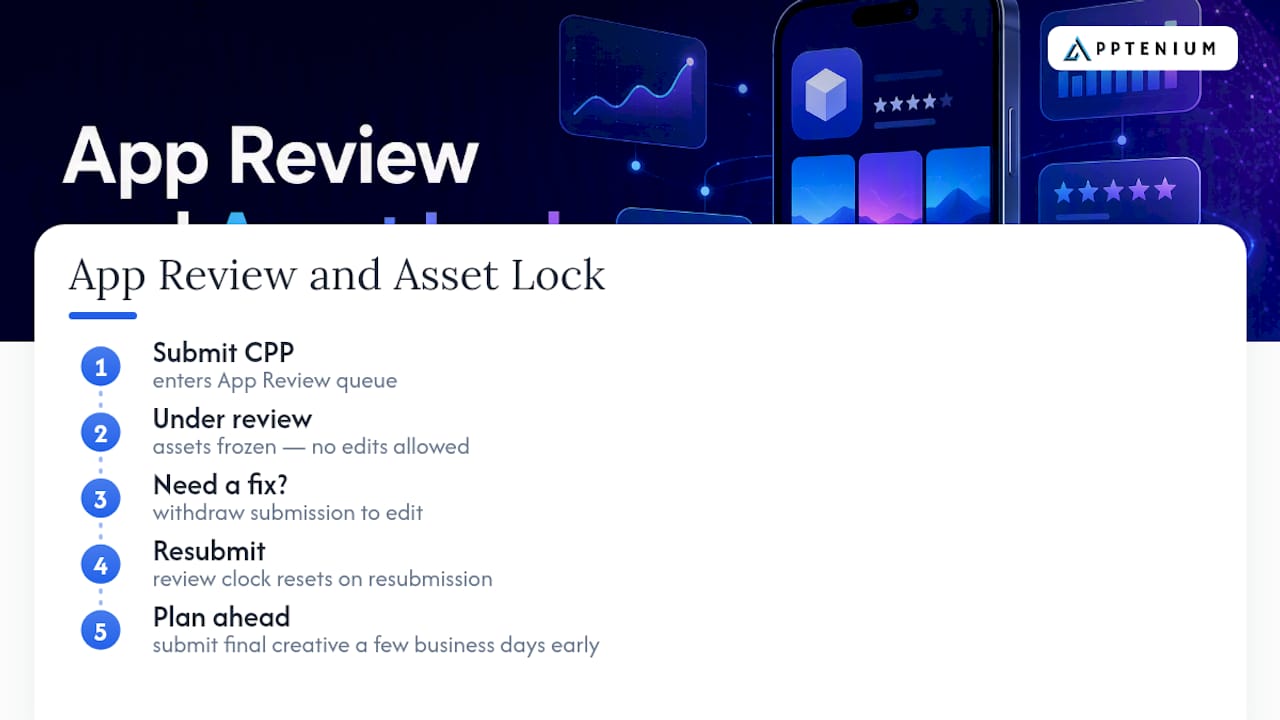
Once submitted, the page moves through the same review queue as your app binary, and Apple’s Tech Talk on custom product pages walks through this exact flow with screen recordings if you want to see it live. One detail that trips up teams: while a CPP sits “in review,” you cannot edit its screenshots, previews, promotional text, or keywords — you have to withdraw the submission first. If you’re managing more than a handful of pages, the App Store Connect API lets you automate uploads and submissions instead of clicking through the interface for every variant.
Connecting CPPs to Apple Ads and Your Other Channels
The biggest performance jump comes from pairing CPPs with Apple Ads ad variations, which let you assign a specific CPP to an ad group so the creative in the ad and the creative on the landing page match automatically. Once that link is set, there’s no manual syncing required as you swap creative in either place.
CPPs aren’t just an Apple Ads feature, though. Any channel with its own link can point to a dedicated page:
- Apple Ads ad groups, mapped one-to-one with a CPP
- Influencer and affiliate links, each with a unique CPP URL for tracking and messaging
- Social posts and email campaigns tied to seasonal or promotional pages
- Landing pages that deep link straight into a relevant screen inside the app
Deep links on CPPs require iOS or iPadOS 18 or later to function, so test the in-app routing before your campaign goes live. A practical example: if you’re running paid social ads for the RPG storyline in your game, point that traffic to an RPG-focused CPP with combat screenshots and a preview video of the boss fight, rather than sending everyone to your generic default page built for a broader audience.
The Metrics That Actually Tell You If a Page Is Working
App Analytics breaks out performance per page, and the numbers worth watching are product page views, tap-through rate, conversion rate (tap-to-install), downloads, retention, and average proceeds per paying user.
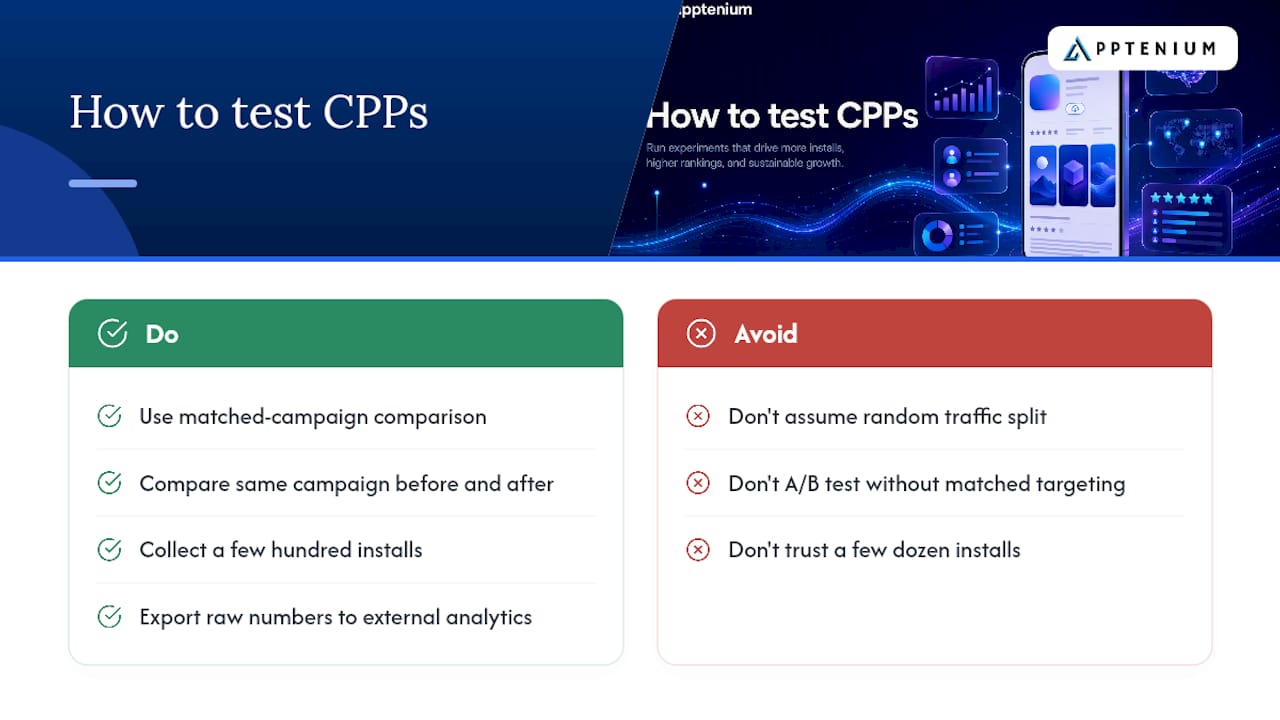
Here’s the catch most teams miss: you can’t run a clean A/B test between two CPPs the way you might test two versions of a landing page elsewhere. Traffic isn’t randomly split between pages. Someone lands on a CPP because a specific ad, link, or search query sent them there, so the audience composition is already different from page to page.
The workaround is a matched-campaign comparison: run the same targeting and spend against two creative sets, or switch a single campaign’s landing page and compare performance before and after under similar conditions. Give it enough time to gather a meaningful sample. A few dozen installs won’t tell you anything reliable; a few hundred, tracked over a full week or two, starts to mean something. For deeper trend analysis across campaigns, pull the raw numbers into an external analytics tool rather than relying on the App Store Connect dashboard alone.
App Review Timing and Why Your Assets Get Locked
Every CPP submission goes through App Review, the same gatekeeping process your app updates go through. While a page is under review, its assets are frozen. Need to fix a typo in your promotional text the night before launch? You’ll have to withdraw the submission, make the edit, and resubmit, which resets the review clock.
That delay can cost you a campaign’s opening days if you’re not planning around it.
Pro Tip: Submit your CPP with final, locked creative at least a few business days ahead of your campaign start date. Building in that buffer is cheaper than losing your launch window to a last-minute resubmission.
A Practical Checklist Before You Build Your Next Page
A handful of habits separate teams that get real lift from CPPs and teams that just create pages because they can.
- Prioritize your highest-value segments and campaigns first; don’t fill every available slot just because you have room.
- Use a naming convention that’s instantly readable, like
RPG-March23-en-US, so anyone on the team knows what a page is for at a glance. - Map keywords carefully so each CPP targets terms genuinely distinct from your default page’s intent.
- Localize assets only for markets where you’re actually running targeted campaigns, and reuse creative elsewhere when it makes sense.
When you’re ready to prioritize, work through it in order:
- Identify your top three acquisition campaigns by spend or strategic priority.
- Match each to a distinct audience need your default page doesn’t address.
- Build and submit those pages first, then expand once you see measurable results.
How Apptenium Fits Into Your CPP Workflow
Planning CPPs well means knowing which keywords and creative angles are worth building for in the first place. Apptenium pulls Firebase, Google Analytics, and ad network data into one view, so you can line up per-page performance against the campaign metrics that actually drove traffic there. Its AI recommendations flag which keywords and listing elements are worth testing before you commit design hours, and live store rankings help you spot which competitor terms are worth chasing with a dedicated page.
When to Build a CPP vs. When to Fix Your Default Page
Build a CPP when you have a genuinely distinct audience segment or a time-boxed campaign worth the production effort. Spend your energy on the default page instead when your goal is broad organic visibility across many search queries, since that’s the page most searchers will actually see. With limited resources, a handful of high-impact pages tied to campaigns you can measure will outperform a dozen pages nobody’s tracking.
— Mike
Try Apptenium to Plan and Track Your CPP Program
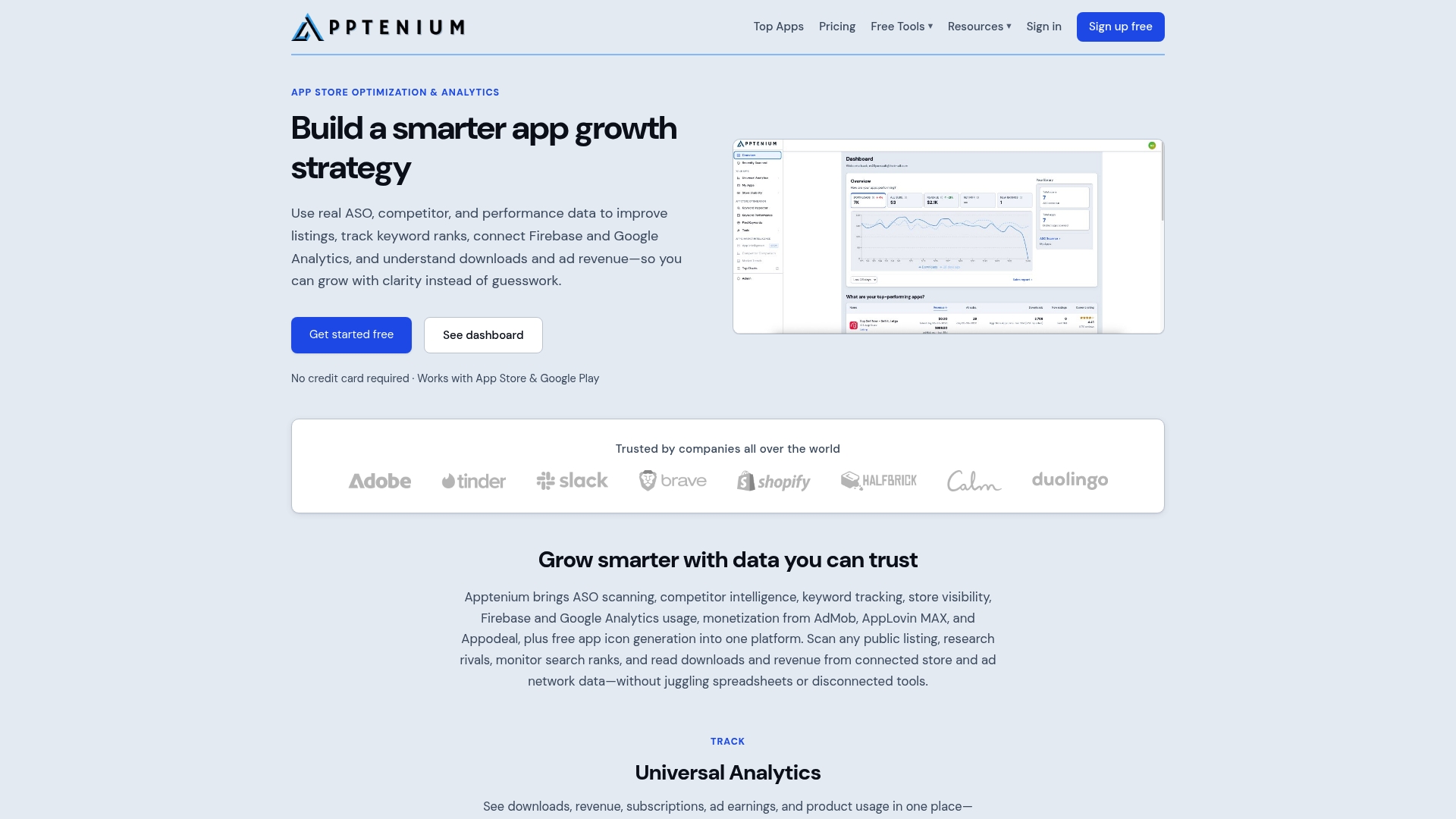
Some platforms offer a unified dashboard reducing the need for multiple browser tabs when deciding which keywords deserve a dedicated custom product page and which campaigns are paying off. ASO scanning, keyword tracking, and competitor intelligence features can work together to spot high-intent terms before briefing a design team, then track conversion and revenue data without manually stitching exports from Firebase and ad networks.
If you’re weighing creative decisions across multiple CPPs, reducing ad fatigue on the campaigns feeding those pages matters just as much as the page design itself, since even a perfectly built CPP underperforms once its source ads go stale. Run a free scan on your current listing at Apptenium to see where your keyword coverage stands today, then check out the best ASO tool for SMBs and startups to see how Apptenium can support your next CPP launch from planning through measurement.
Official Resources Worth Bookmarking
Save Apple’s custom product pages overview, the Apple Ads ad variations guide, the App Review submission guidance, and the Tech Talk walkthrough video for setup reference.
Sources
FAQ
What Are Custom Product Pages?
They’re alternate versions of your App Store listing, each with a unique URL, letting you show different screenshots, previews, and promotional text to different audiences without changing your app’s core metadata.
How Do You Create a Product Page in App Store Connect?
Go to the Custom Product Pages section under Features, start from a blank page or duplicate an existing one, upload your assets, then submit it for App Review.
What Counts as a Custom Product Page in App Store Connect Specifically?
It’s a distinct, submittable set of screenshots, preview videos, promotional text, keywords, and an optional deep link, tied to its own URL and tracked separately in App Analytics from your default listing.
What Does a Strong Custom Product Page Look Like?
It mirrors the ad or link that drove the visit, uses screenshots relevant to that specific audience or feature set, and carries keywords distinct from your default page rather than duplicating them. Tools like Apptenium can help confirm those keywords aren’t already saturated elsewhere in your listing.
How Many Custom Product Pages Can One App Have?
Apple has expanded this limit over time; current guidance allows up to 70 custom product pages per app, which is far more than most teams will ever need to use at once.