Scale Custom Store Listings for App Marketers: ASO First Workflows
Scale Custom Store Listings for App Marketers: ASO First Workflows
Custom store listings let you show tailored Play Store pages to specific user segments or campaign visitors, matching the message on the page to the intent that brought someone there. The immediate action: open Play Console, go to Grow users > Store presence > Custom store listings, and build one for your highest-intent audience first. You get up to 50 per app, and the most common triggers worth targeting are country, search keyword, ad campaign source, and install state like lapsed or non-buyer users.
TL;DR:
- Custom store listings are limited to 50 per app and require unique URL parameters for each target segment, making careful naming essential for scale.
- Effective use cases include aligning listings with ad campaigns, high-volume search terms, re-engagement efforts, and staged launches, emphasizing message consistency.
- Proper translation, avoiding overlapping country targets, and regular updates are critical to maintain visibility and compliance across markets.
- Tracking metrics such as conversion rate, retention, and revenue, alongside structured experimentation, ensures CSLs deliver measurable value.
- Automated tools like Gemini for localization speed and Apptenium for metadata audits can streamline scaling while preventing policy violations and content errors.
Table of Contents
- What Are Custom Store Listings and What Can You Target?
- How Do You Set Up a Custom Store Listing in Play Console?
- Which Use Cases Get the Best Results From CSLs?
- How Do You Measure Whether a Custom Store Listing Works?
- Can Gemini Handle Localization at Scale?
- What Are the Operational Limits and Governance Rules?
- How Do You Avoid Policy Rejections With CSLs?
- How Do You Choose the Right Segments to Target?
- Why Do Custom Store Listings Stop Showing or Misbehave?
- How Often Should You Update Custom Store Listings?
- An Editorial Take: Prioritize Before You Automate
- Let Apptenium Handle the ASO Heavy Lifting
- Sources
- FAQ
What Are Custom Store Listings and What Can You Target?
A custom store listing (CSL) is a variant of your Play Store page that Google shows to a specific slice of visitors instead of your default listing. Everyone else still sees your standard page. The value is straightforward: a visitor arriving from a fitness influencer’s ad sees fitness-specific screenshots and copy, while a visitor searching “budget tracker” sees a page built around that exact phrase.
Google Play supports a defined set of targeting conditions, and understanding which ones apply to your app shapes your whole CSL strategy:
- Country or region — show different pricing, language, or feature emphasis by market.
- Pre-registration status — target users in countries where your app hasn’t launched yet.
- Install-state cohorts — reach lapsed users, churned subscribers, non-buyers, or repeat buyers differently than first-time visitors.
- Search keywords — match a listing to specific queries typed into the Play Store search bar.
- Google Ads traffic — align a listing with a specific campaign’s creative and offer.
- Custom audiences — layer in segments built from your own behavioral data.
This flexibility come with structured targeting rules that require a unique listing parameter for URL-based traffic, which we’ll cover in the setup section.
Not everything is editable per listing. You can change the app name, icon, short description, full description, and graphic assets like screenshots and feature graphics. Category, developer contact information, and your privacy policy stay fixed across every listing tied to your app. That’s deliberate: Google treats those as identity and compliance fields, not conversion levers.
One operational detail trips up a lot of teams: custom store listings don’t translate themselves. You set a default language per listing and add translations manually for each target country. If you build a CSL for Mexico but forget to add Spanish copy, visitors see whatever default language you set, which usually isn’t the local language they expected. Google also enforces a uniqueness constraint: you can’t have two listings targeting the exact same country within the same listing group, which forces you to think in terms of exclusive audience buckets rather than overlapping filters.
How Do You Set Up a Custom Store Listing in Play Console?
Building your first CSL takes about fifteen minutes once you know the sequence. Here’s the order that avoids the most common rework:
- Navigate to the right section. In Play Console, go to Grow users > Store presence > Custom store listings, then choose Create custom store listing.
- Decide: new, duplicate, or group. Starting from scratch works for a genuinely new audience. Duplicating an existing listing saves time when you’re adjusting one or two assets for a similar segment. Creating within a listing group lets multiple listings share a base set of assets while each targets a different country.
- Set your default language and add translations. Pick the primary language for this listing, then upload translated copy for each additional country you’re targeting. Preparing translations in a shared spreadsheet or CSV before you touch Play Console keeps this step fast and reduces copy-paste errors across teams.
- Configure targeting. Choose your audience segment, whether that’s a country list, a search keyword bundle, an install-state cohort, or Google Ads traffic. You can combine some targeting types, but remember the uniqueness rule for country overlap within a group.
- Define your unique listing parameter. This short string becomes part of your listing’s URL and must be distinct from every other listing parameter on your app. The resulting format looks like
https://play.google.com/store/apps/details?id=[packageName]&listing=[parameter], which is what you’ll drop into your ad campaign as the landing page. - Review and publish. Preview each language variant before you save. Google reviews new store listing content, so budget a short buffer before your campaign launch date.
Pro Tip: Build a shared naming convention for listing parameters before your team scales past five or six CSLs. Something like us_lapsed30 or fr_keyword_budget reads instantly at a glance and prevents two people from accidentally reusing the same string.
Three pitfalls show up constantly. First, teams forget translations for secondary markets and end up showing English copy to a French audience. Second, overlapping country targets across two listings in the same group create unpredictable display behavior, since Play Console can’t reliably decide which listing wins. Third, pre-registration listings behave differently than people expect: they only appear in countries where your app hasn’t launched, so once you go live in that market, the pre-registration page silently stops showing.
Which Use Cases Get the Best Results From CSLs?
Custom store listings earn their keep fastest in four scenarios, and the difference between a listing that converts and one that doesn’t usually comes down to message consistency.
Campaign alignment is the highest-leverage use case. When you run a paid campaign, the screenshots, headline, and first line or two of your CSL description should mirror the ad creative almost exactly. Directing Google Ads traffic to a matching custom store listing improves consistency between the ad and the landing page, which tends to lift conversion and cut bounce. A user who clicked an ad about meal planning shouldn’t land on a generic “all-in-one lifestyle app” page.
Keyword-targeted listings work well for high-volume search terms where your default listing doesn’t rank or convert as well as it could. Pick a keyword bundle in Play Console, then write a description and pick screenshots that directly answer what someone searching that phrase is looking for.
Re-engagement and win-back campaigns need a different tone entirely. Instead of a first-impression pitch, lead with what’s changed: a new feature, a limited discount, or an upgraded subscription tier. A lapsed-user CSL that just repeats your original app pitch wastes the opportunity.
Pre-registration and staged launches require careful translation planning since these listings vanish the moment your app ships in that country. Treat pre-registration copy as temporary by design.
A few best practices apply across all four:
- Avoid message dissonance between your ad and your listing. Nothing kills conversion faster than a mismatch.
- Pick one strong call to action per listing rather than three competing ones.
- Prioritize your highest-intent segments first. A well-built listing for a small, warm audience often outperforms a rushed one for a large, cold audience.
How Do You Measure Whether a Custom Store Listing Works?
Three metrics matter more than any others: store listing conversion rate (visitors to installs), retention at the 1 week and 28 day marks, and downstream revenue or in-app event completion. A CSL that spikes installs but tanks retention isn’t a win. It’s a mismatch between promise and product.
Play Console supports store listing experiments for A/B testing and acquisition reports for tracking traffic quality, which together give you both the “did this variant win” answer and the “where did these users come from” context. Run experiments this way:
- Write a hypothesis. Something like: “Screenshots emphasizing the free tier will outperform screenshots emphasizing premium features for organic search traffic.”
- Define your audience and variant differences. Isolate one or two variables at a time. Changing five assets at once tells you something changed, not what caused it.
- Set a duration. Give the experiment enough time to collect a meaningful sample, generally at least two full weeks to smooth out day-of-week noise.
- Set a decision rule in advance. Decide what conversion lift counts as a win before you look at results, not after.
Attribution ties back to your ad platform: choosing a custom store listing as your Google Ads landing page lets you connect ad spend directly to install quality through cohort analysis, rather than guessing whether a spike in installs came from your ad or from organic search that week.
The practitioner discipline that separates teams who see real gains from teams who don’t: test before you assume. A redesign that looks better to your team doesn’t automatically convert better. Small experiments with defined success criteria beat confident guesses almost every time.
Can Gemini Handle Localization at Scale?
Gemini, Google Play’s built-in AI capability, can pre-populate localized store listing text from structured uploads like CSV files or Google Sheets. That’s a genuine time-saver when you’re building CSLs for a dozen countries at once. Manual review remains necessary because AI-generated translations tend to produce grammatically correct but locally flat copy. It misses the idioms and search phrases people actually type.
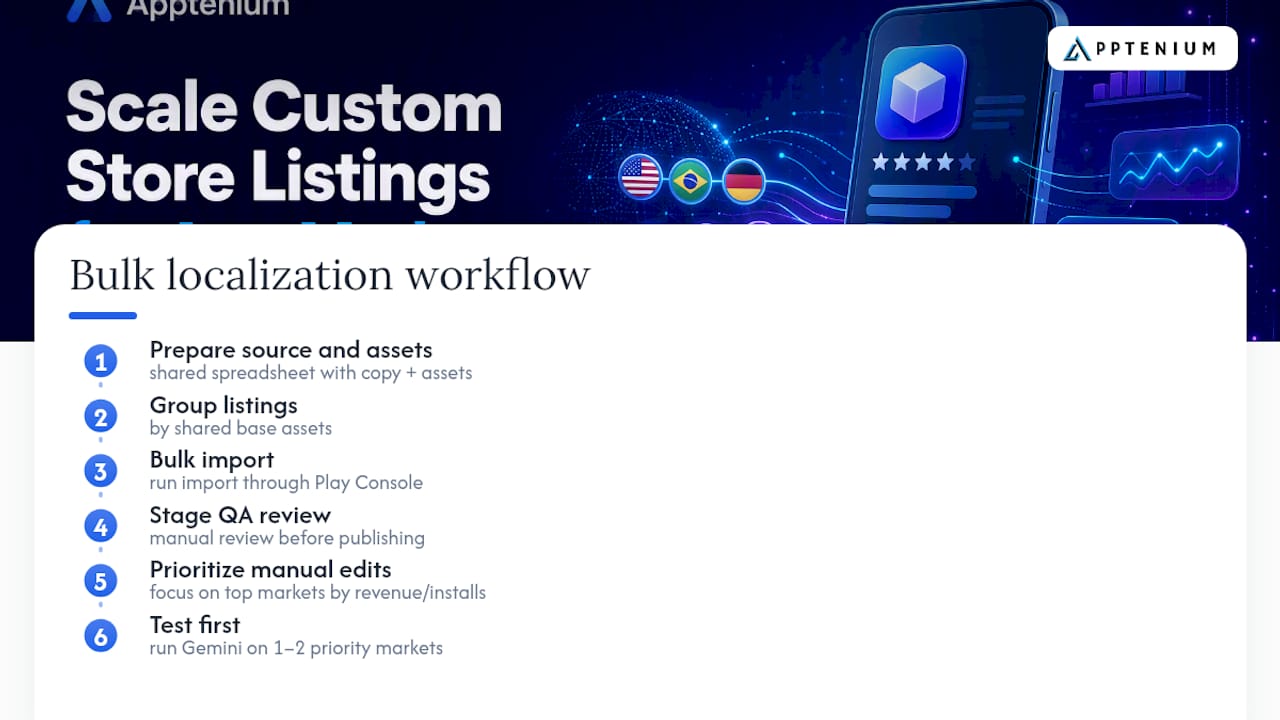
A workable bulk workflow looks like this: prepare your source copy and asset list in a shared spreadsheet, group listings by shared base assets, run the bulk import through Play Console, then stage a QA pass before anything goes live. Prioritize manual edits for your top markets by revenue or install volume rather than trying to hand-polish every country equally.
Before publishing AI-assisted translations, check three things: does the phrasing sound like something a local speaker would actually write, does it include the search terms people in that market actually use, and does it overlap awkwardly with a competitor’s positioning in that language. Gemini speeds up the first draft. It doesn’t replace the person who knows how locals actually talk about your category.
Pro Tip: Run your first Gemini-assisted localization on one or two priority markets before rolling it out everywhere. A small test surfaces phrasing issues while the fix is still cheap.
What Are the Operational Limits and Governance Rules?
Google caps custom store listings at 50 per app, and every listing parameter used for URL targeting must be unique across your entire app. That ceiling sounds generous until you’re running country-level and keyword-level and campaign-level listings simultaneously.
Listing groups let multiple listings inherit a shared base of assets, then override specific elements like screenshots or description per country. That inheritance model saves setup time but means a change to a group’s base asset ripples across every listing in it unless you’ve explicitly overridden that element.
Set a naming convention for listing parameters before your CSL count climbs past ten. A central registry, even a simple shared spreadsheet, prevents two team members from creating conflicting parameters. For release cadence, stage new listings a few days ahead of any campaign launch to leave room for Google’s review, and keep a rollback plan (usually just reverting to the prior asset set) ready in case a new variant underperforms.
How Do You Avoid Policy Rejections With CSLs?
Custom store listings fall under the same content and metadata policies as your default listing, which means keyword stuffing in your description, misleading screenshots, or claims your app can’t back up risk rejection or removal regardless of which listing they appear on. Google reviews every CSL variant, not just your primary one, so a shortcut you’d never take on your main page shouldnk’t show up on a country-specific variant either.
The most common compliance trip-ups with CSLs specifically involve pre-registration messaging that overstates launch timing, translated copy that inadvertently makes a different claim than your source language, and graphic assets that reference promotions or pricing no longer active. Because CSLs multiply your total surface area of published content, they also multiply your exposure if one variant slips out of date.
Treat every CSL update with the same review discipline you’d apply to your primary listing. Before publishing, check that pricing and offer claims match what’s actually live, that translated text doesn’t drift from the approved source meaning, and that no asset references a feature or promotion that’s since expired. Build this into whoever owns the release checklist rather than assuming Play Console’s review process will catch everything. It catches policy violations, not stale marketing copy.
How Do You Choose the Right Segments to Target?
Segment selection determines whether a CSL earns its setup time or just sits there converting at the same rate as your default listing. Start with behavioral data, not assumptions: pull install-state cohorts from your analytics (lapsed users, churned subscribers, high-value repeat buyers) and rank them by size and revenue potential before building anything.
The segments worth prioritizing first are the ones where the default listing is demonstrably mismatched to intent. A search-keyword segment where your organic conversion rate lags your paid conversion rate signals that your default copy doesn’t answer that specific query well. A lapsed-user cohort with declining reactivation rates signals your default listing isn’t giving returning users a reason to come back.
Layer custom audiences on top of the built-in targeting options when you have first-party behavioral data, such as users who abandoned a specific in-app flow or hit a usage ceiling on a free tier. That data usually lives in Firebase or your analytics platform, and connecting it to your CSL strategy turns a generic “country” target into something closer to “users who saw the paywall three times and didn’t convert.”
Resist the urge to build a CSL for every conceivable segment at once. A handful of well-targeted, well-measured listings for your highest-intent cohorts will teach you more, and convert better, than twenty half-built variants spread thin across low-value segments.
Why Do Custom Store Listings Stop Showing or Misbehave?
The most frequent troubleshooting call comes from listings that seemingly vanish. Nine times out of ten, it’s the pre-registration rule: once your app ships in a country, the pre-registration CSL for that country automatically stops appearing, whether or not you meant for that to happen.
Overlapping country targets across two listings in the same group is the second most common issue, producing unpredictable display behavior since Play Console can’t decide which listing should win for a given visitor. Enforcing a naming convention and a central registry for listing parameters, mentioned earlier, prevents most of this before it starts.
Translation gaps cause a quieter but equally damaging problem: a listing technically works, but shows fallback default-language copy to a market where you assumed local text was live. Always preview each language variant before publishing, not just the default one.
If a URL-targeted listing isn’t showing correctly, check the listing parameter first. A typo or duplicate parameter in the URL is the single most common cause of a campaign landing on the wrong page or your default listing instead of the intended CSL.
How Often Should You Update Custom Store Listings?
Treat CSLs as living assets, not one-time builds. A listing tied to an active ad campaign should get reviewed every time the campaign creative changes, since a stale CSL next to fresh ad creative is exactly the kind of message dissonance that hurts conversion.
For keyword-targeted and country-targeted listings without an active campaign behind them, a quarterly review catches most of what matters: outdated screenshots, expired promotions, and seasonal messaging that’s overstayed its relevance. Re-engagement listings deserve more frequent attention, since the “what’s changed” pitch that worked last month may already be outdated if you’ve shipped new features since.
Build listing maintenance into whatever release cadence your team already uses for the app itself. A CSL update doesn’t need its own separate process. It just needs an owner who checks it against the current state of the product and campaign before assuming it’s still doing its job.
An Editorial Take: Prioritize Before You Automate
Teams often build ten CSLs before validating that even one moves the needle. A better sequence: pick your single highest-intent segment, usually a paid campaign audience or a strong keyword bundle, build one listing, run an experiment, and only then scale. One prioritized test against a lapsed-user cohort typically reveals more about what actually drives reactivation than a dozen untested variants ever will.
This is where a tool like Apptenium’s ASO Scanner earns its place in the workflow. Auditing your default listing’s metadata before you branch into CSL variants tells you whether the problem is really segmentation, or whether your base listing has fixable issues first. On the team side: product should own the assets, marketing owns messaging and campaign alignment, and analytics owns the measurement plan. Splitting those roles cleanly avoids the common failure mode where nobody actually reviews the experiment results.
— Mike
Let Apptenium Handle the ASO Heavy Lifting
Apptenium is the alternative to juggling five disconnected tools for your custom store listing work. It pulls ASO scanning, competitor intelligence, and keyword tracking into one dashboard, so you’re not stitching together Play Console data with a separate analytics tab and a third tool for keyword research.
Before you build your next CSL variant, run your current listing through the free ASO Scanner to catch metadata issues no credit card required. Apptenium’s AI-powered recommendations surface copy-ready fixes for your description and keyword targeting, and once you connect Firebase or Google Analytics, you can see how a CSL experiment actually affects downstream revenue and retention, not just install counts. That closes the loop between what Play Console’s experiments tell you and what your business actually cares about.
If you’re managing multiple listings across markets or campaigns, the Pro plan at $9.99 per month unlocks unlimited scans so you’re not rationing audits to your top few listings. Start with a free scan on your default listing today, then decide whether Pro’s ongoing monitoring fits your CSL rollout.
Sources
- Custom store listings — Google Play business
- Create custom store listings to target specific user segments — Play Console Help
FAQ
What Is a Custom Store Listing?
A custom store listing is a variant of your Play Store page that Google shows to a specific audience segment instead of your default listing, letting you change the app name, icon, descriptions, and graphics for that group. You can create up to 50 per app, each targeting a different country, keyword bundle, or user cohort.
How Do I Create a Custom Store Listing in Play Console?
Go to Play Console, navigate to Grow users > Store presence > Custom store listings, and choose to create a new listing, duplicate an existing one, or build within a listing group. From there you set your default language, add translations, configure targeting, and define a unique listing parameter before publishing.
How Do I Target a Custom Store Listing to a Specific Audience?
Play Console lets you target by country, pre-registration status, install-state cohort, search keyword, Google Ads traffic, or custom audience. Each listing needs a unique targeting configuration within its group, since overlapping country targets between listings causes unpredictable display behavior.
How Do I Get My App Listed on Google Play?
Getting an app listed on Google Play means submitting it through Play Console with your app bundle, store listing content, and required compliance details, then passing Google’s review process. That’s separate from custom store listings, which are variants you build after your app is already live or in pre-registration.
Does Apptenium Help With Custom Store Listing Optimization?
Apptenium audits your listing metadata and surfaces AI-backed recommendations you can apply before building CSL variants, plus tracks keywords and competitor listings to inform your targeting strategy. Current pricing, including the free tier and the Pro plan, is listed on Apptenium’s pricing page.