Forbidden App Store Keywords: 5 Rejection Risks for Developers

Forbidden App Store Keywords: 5 Rejection Risks for Developers
Apple forbids trademarked terms, competitor and popular app names, unauthorized celebrity names, irrelevant or offensive phrases, and pricing text in your metadata. Keep your app name within 30 characters and your keyword field within 100 characters, per the App Review Guidelines. Remove or replace anything flagged, then audit your listing before every submission.
TL;DR:
- The 100 byte keyword field usually holds 100 Latin characters; use commas without spaces, and omit terms already in your name or subtitle.
- Apple indexes subtitles, but promotional text does not affect search ranking; reserve subtitles for uncovered keywords and promotional text for timely offers.
- Favor specific, lower competition phrases that match actual searches, and use Apple Ads Search Match to uncover relevant terms your metadata may have missed.
- Apple can alter inappropriate metadata, reject submissions, or remove apps after repeat violations; document corrections and resubmit with a brief explanation.
Table of Contents
- What does Apple prohibit in App Store metadata?
- What are the technical limits for keyword fields?
- How do you choose keywords that stay compliant?
- How do you audit a listing for forbidden keywords?
- What happens if you use forbidden keywords?
- Why metadata hygiene belongs in every release
- Scan your listing with Apptenium
- FAQ
- Sources
What does Apple prohibit in App Store metadata?
Apple’s rules come down to one idea: metadata must describe your app honestly and nothing else. The product page guidance calls improper keyword use a common cause of rejections, and the same page names the usual offenders. Here is what to keep out of your title, subtitle, and keyword field:
- Trademarked terms and competitor names. Another app’s name, or a well-known brand you do not own, has no place in your listing. “Photo editor like Instagram” is a rejection waiting to happen.
- Celebrity and protected personal names. Unless you hold authorization, leave them out, even if users search for them.
- Offensive or objectionable language. This includes anything crude, discriminatory, or inappropriate for the stated age rating.
- Irrelevant phrases. If a term does not directly describe what your app does, it is padding. A calculator app has no business ranking for “free movies.”
- Pricing text and promotional claims. Words like “free,” discount claims, or “best deal” do not belong in fields built for descriptive keywords.
Apple also reserves the right to act on its own. An App Review Guideline update clarifies that Apple may modify inappropriate keywords at any time to prevent abuse. In practice, that means a term you thought was borderline can be edited out or can trigger a rejection without a warning cycle.
The same logic applies on Google Play, though the details differ. Google Play also restricts misleading or keyword-stuffed listings, but its title and description are indexed differently, so a tactic that is tolerated there can still fail on iOS. Treat each store’s policy as its own checklist.

What are the technical limits for keyword fields?
Even compliant keywords fail if they overflow the field. These are the limits that matter, and the App Review Guidelines confirm the two hard caps:
- Keyword field: 100 bytes in total, which for most Latin-script text equals 100 characters. Separate terms with commas and no spaces after them, since spaces consume budget.
- App name: 30 characters. Spend them on your brand plus your single strongest descriptor.
- Subtitle: Indexed for search, so it should carry keywords your name does not.
- Promotional text: It does not affect search ranking. Use it for conversion messaging and timely offers, and keep it away from your keyword strategy.
- Description: Written for people deciding whether to install, not for stuffing.
Words that already appear in your app name or subtitle do not need to be repeated in the keyword field, so a duplicate wastes characters. Skip plurals of words you already include, since Apple handles basic variants. Skip category names too, because your category is already a ranking signal.
How do you choose keywords that stay compliant?
Compliance and discoverability are not opposites. The goal is to spend 100 characters on terms that match what your users type, with nothing risky in the mix. Here is the order we recommend:
- Start with intent. List the phrases your target users would actually search, not the terms you wish they used. Apple Ads guidance advises focusing on relevance and user intent when choosing keywords.
- Remove what is already covered. Anything in your name, subtitle, or category is redundant in the keyword field.
- Prioritize unique, high-value terms. One specific phrase that nobody else targets often beats a generic word that every competitor fights over.
- Favor specific, lower-competition phrases. A narrow term such as “invoice scanner for freelancers” is easier to rank for than “business.”
- Use discovery tools. Apple Ads Search Match, per the same guidance, uses your existing metadata to suggest relevant keywords, which is a reliable way to find terms you missed.
- Cut the filler. Drop the word “app,” category names, and any term that resembles a trademark.
Pro Tip: Check a keyword’s performance before you commit to it: Apple Ads guidance recommends reviewing keyword results regularly and adding non-performing terms as negative keywords in ad campaigns, and the same discipline works for your organic keyword field.
Metadata is only part of launch readiness, and small teams often skip product-market fit. Why small business apps fail is a useful companion read on that side of the problem.
How do you audit a listing for forbidden keywords?
Run this checklist before each submission and each update:
- Export your metadata. Copy the name, subtitle, keyword field, description, promotional text, and screenshot captions into one audit file.
- Scan for violations. Flag trademarked names, competitor names, celebrity names, pricing text, and irrelevant terms. When you are unsure about a name, treat it as flagged until you confirm you have rights to use it.
- Consolidate the keyword field. Remove duplicates and category words so the 100-character budget goes to terms that earn it.
- Inspect the product page. Preview the page and screenshots for embedded text such as price claims or competitor logos, then rewrite or remove them.
- Resubmit with context. If Apple rejects the build, fix the cited issue, note exactly what changed, and include a short explanation.
| Audit item | What to look for | Action |
|---|---|---|
| App name | Over 30 characters, trademarks | Shorten or rename |
| Keyword field | Over 100 characters, duplicates, “app” | Trim and dedupe |
| Subtitle | Competitor names, price claims | Rewrite descriptively |
| Screenshots | Embedded promo or brand text | Redesign the captions |
What happens if you use forbidden keywords?
Apple can modify or remove inappropriate metadata, reject a submission, or escalate when violations repeat. Outcomes range from a quiet metadata edit to temporary or permanent removal of the app.
- After a rejection, correct the metadata, document your changes, and resubmit with a brief explanation.
- When trademark use is uncertain, get written authorization or pick a descriptive alternative term.
- For repeat issues, assign one owner to metadata so the same mistake does not return with the next release.
Why metadata hygiene belongs in every release
I treat metadata like code: it deserves a review, an owner, and a history. Most keyword rejections I see are not clever violations, just a hurried edit nobody double-checked. Keep a changelog of every metadata change, which helps when you appeal a rejection and when you measure what moved your rankings. Automated scanning catches the obvious problems fast, but a human still decides what is borderline. Pair the two and review friction drops.
— Mike
Scan your listing with Apptenium
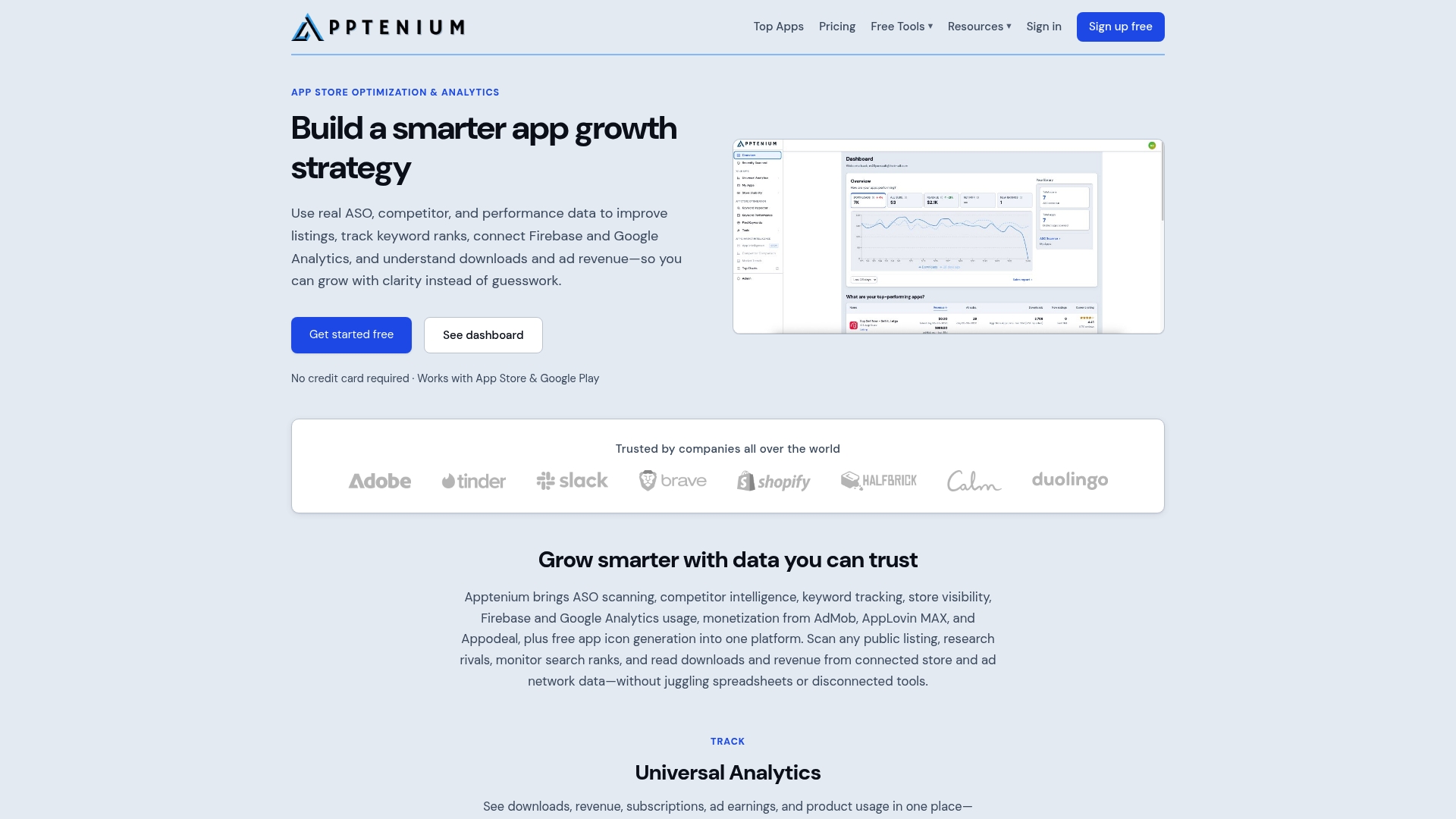
Catching a forbidden term after rejection costs you days. We built our ASO scanning to help you review your app metadata before you submit, so your release does not stall on a keyword.
- We scan your app metadata.
- Our competitor intelligence and keyword tracking help you monitor rivals and keyword performance.
- Our AI suggestions give you copy-ready fixes with every scan.
Start with a free scan, or compare plans on our pricing page. Pro is $9.99 per month.
FAQ
What are forbidden keywords in the App Store?
They are terms Apple does not allow in your metadata, such as unauthorized trademarks, competitor names, celebrity names, and irrelevant or offensive phrases. Apple’s product page guidance names improper keyword use as a common reason for rejection.
What does App Store optimization mean?
App Store optimization, or ASO, is improving an app’s metadata, including title, subtitle, keywords, and description, to raise visibility, search ranking, and organic downloads, as Helpshift’s glossary describes it. Accurate, policy-compliant metadata is its foundation.
How can I find forbidden keywords in my own listing?
Export your name, subtitle, keyword field, and description, then check each against Apple’s restricted categories. Review screenshots for embedded text as well. A scanning tool speeds this up, but a manual read catches borderline cases.
Does Apple really change my keywords?
Yes. Apple may modify inappropriate keywords at any time to prevent abuse, according to its guideline update. Keeping metadata clean avoids having those decisions made for you.