Clean a 100 Character iOS Keyword Stack in 30 Min for App Marketers

Clean a 100 Character iOS Keyword Stack in 30 Min for App Marketers
Keyword stacking on iOS means treating your app’s title, subtitle, and hidden keyword field as one combined pool of searchable text instead of three separate boxes to fill. The single highest-leverage change you can make is eliminating duplicate words across those three fields, since Apple’s keyword field documentation advises against repeating anything already in your app name or subtitle. Prioritize unique, high-relevance terms that pair naturally with the words already visible in your title.
TL;DR:
- Keep the keyword field within 100 characters, comma separated without spaces, and remove every term already present in the title or subtitle.
- Assign every Custom Product Page a separate search intent supported by demand, and compare its organic impressions with the default listing to spot traffic splitting.
- Test keyword groups through Apple Search Ads or organic page experiments, tracking impressions, taps, installs, and retention; review results biweekly or monthly.
- Avoid trademarked and competitor names, plural duplicates, and broad terms that poorly match features; narrow relevant phrases can outperform high volume generic searches.
Table of Contents
- Quick checklist for implementing keyword stacking
- Step-by-step stacking workflow: research, filter, compose, place, test
- Custom Product Pages and avoiding self-cannibalization
- Common mistakes, red flags, and troubleshooting
- Tools and metrics for validating your keyword stack
- How Apptenium supports keyword stacking in practice
- Principled rules for long-term stacking success
- Run a free scan and export your cleaned keyword stack
- FAQ
- Sources
Quick checklist for implementing keyword stacking
Before you touch App Store Connect, run through this short list. It catches the mistakes that cost the most visibility and takes under thirty minutes for most listings.
- Confirm your keyword field stays within the 100-character limit, comma-separated with no spaces after each comma.
- Audit your title and subtitle first, then check the keyword field for anything that repeats a word already indexed there.
- Build a de-duplicated candidate list and narrow it to a selection of high-intent terms that reflect real search behavior.
- Assign a distinct keyword set to every Custom Product Page you plan to launch, with zero overlap against the default page.
- Set a review cadence, biweekly works for most teams, and track impressions, taps, and conversion before your next edit.
Each of these steps feeds the next. A clean audit makes your candidate list shorter and sharper, and a sharper list makes your CPP assignments easier to defend when you look back at performance data later.
Step-by-step stacking workflow: research, filter, compose, place, test
Good keyword stacking follows a sequence. Skipping a step usually shows up later as wasted characters or two fields fighting for the same search term.
- Research. Pull suggestions from Apple’s built-in keyword tool in App Store Connect, review what Search Match already surfaces your app for, and shortlist queries your target users would realistically type.
- Filter. Remove plural duplicates of singular terms you already used, strip out your own app name or category label if it is already visible elsewhere, and cut anything already present in your title or subtitle, since Apple’s guidance treats those as redundant.
- Compose. Choose keyword field terms that complete a phrase when combined with your title or subtitle rather than repeating their meaning. If your title includes “budget tracker,” a keyword field entry like “savings, expense,split” creates new phrase matches instead of restating the same idea.
- Place. Your title gets a limited number of characters, your subtitle also has a restricted limit, and your keyword field holds up to 100 characters total. Save your single highest-value head term for the title, a secondary head term plus a differentiator for the subtitle, and reserve the keyword field for modifiers, synonyms, and use-case language that the visible fields do not already cover.
- Test and iterate. Use Apple Search Ads campaigns and CPP experiments to validate which combinations actually convert. Apple Ads best practices recommend separating keyword types, brand, category, competitor-adjacent, and discovery terms, into distinct campaigns so you can see which group is pulling weight.
Monitor impressions, taps, tap-to-install conversion, and post-install retention for each test. A keyword that drives taps but no installs usually signals a mismatch between what the term promises and what your screenshots or preview deliver.
Pro Tip: Save your keyword field edit for after you have finalized your title and subtitle. Changing either one later forces a full re-audit of the keyword field to catch new duplicates.

Custom Product Pages and avoiding self-cannibalization
Custom Product Pages let you create alternate versions of your listing, each with its own screenshots, preview video, and keyword assignment, and since 2025, these pages can appear directly in organic search results when configured properly, according to Apple’s CPP documentation. This changes the stakes: a CPP is no longer just a landing page for ad traffic; it is a second surface competing for the same searches as your default listing.
The fix is straightforward. Assign each CPP a keyword combination that targets a distinct intent, never the same set your default page already covers.
- Give each CPP a clear job: one feature angle, one audience segment, or one use case, never a generic restatement of your main listing.
- Cross-check keyword lists across all your CPPs and your default page in a single spreadsheet before publishing any of them.
- Reserve a CPP for a segment only when you have evidence of real search demand or ad performance that justifies a dedicated page.
- Track each CPP’s organic impressions separately so you can tell whether it is pulling new traffic or simply splitting your existing traffic.
Apple’s developer tech talks show CPPs paired with Apple Search Ads to align creative and keyword groups for better conversion, which is a useful model even if your CPP never runs paid traffic. The same discipline, one page, one intent, one keyword set, keeps your organic listings from competing against themselves.
Common mistakes, red flags, and troubleshooting
Most keyword stacking failures trace back to five repeatable errors. Catching them early saves a full re-index cycle.
- Duplicate or plural redundancy: listing both “budget” and “budgets,” or repeating a word that already appears in your title, wastes character space that Apple’s documentation explicitly flags as unnecessary.
- Trademarked or competitor names: Apple’s own product page guidance lists trademarks and competitor names among forbidden keyword types, and using them risks rejection.
- Formatting errors: a stray space after a comma or a forbidden character can quietly break how your keyword field indexes, even though the field may still save without an error message.
- Cannibalization signs: if a new CPP’s impressions rise while your default listing’s impressions fall by a similar margin, you are likely splitting the same audience rather than reaching a new one, and rolling back to a more distinct keyword set is the faster fix than waiting it out.
- Chasing high-volume terms that do not fit: a broad, generic keyword with heavy competition often converts worse than a narrower term that matches your actual feature set.
Pro Tip: Keep a simple version log of every keyword field change, including the date and what you swapped out. It turns “did that last edit help or hurt” into a five-minute lookup instead of a guessing game.
Tools and metrics for validating your keyword stack
You do not need an expensive toolkit to run a disciplined stacking process, but you do need consistent measurement.
- Start with Apple’s own resources: Search Match for discovery, the keyword suggestion tool inside App Store Connect, and the Apple Ads best-practices guide for structuring test campaigns.
- Small teams can track performance with a shared spreadsheet logging keyword, placement, date added, and the following two weeks of impressions and taps.
- Reach for Apple Search Ads when you need faster signal on a specific term’s conversion potential; rely on organic CPP testing when you want to validate a full page concept without ad spend.
- Prioritize impressions and taps first, since they confirm discoverability, then tap-to-install conversion and retention, which confirm the keyword actually attracted the right user.
Apple’s App Store search documentation notes that ranking considers both metadata matches and user behavior signals, so a keyword that gets taps but low retention can quietly hurt your broader search standing over time.
How Apptenium supports keyword stacking in practice
Our metadata scanning tool is designed to catch duplicate-coverage problems that undermine most stacking efforts: it flags when a word in your keyword field already appears in your title, subtitle, or category, so you fix it before submission rather than after a ranking dip.
- The scanning engine checks title, subtitle, and keyword field together and surfaces overlaps you would otherwise have to catch by eye.
- Connections to Firebase and Google Analytics allow a keyword experiment to tie directly to installs and revenue, not just impressions.
- AI recommendations can rank candidate terms by relevance and suggest how to split keyword sets across Custom Product Pages without overlap.
- Running a first scan takes a few minutes: connect the app listing, review the flagged duplicates, and export a cleaned keyword list ready to paste into App Store Connect.
Principled rules for long-term stacking success
Most teams overvalue search volume and undervalue relevance. A smaller list of terms that pair naturally with your visible title words will usually outperform a keyword field packed with broad, generic traffic magnets that do not match what your app actually does. Treat Apple Search Ads and CPP experiments as hypothesis tests, not guesswork you run once and forget. The teams that win long-term keep tight governance over their metadata: a change log, a rollback plan, and a habit of checking whether last month’s edit actually moved impressions or taps. Discipline beats cleverness here.
— Mike
Run a free scan and export your cleaned keyword stack
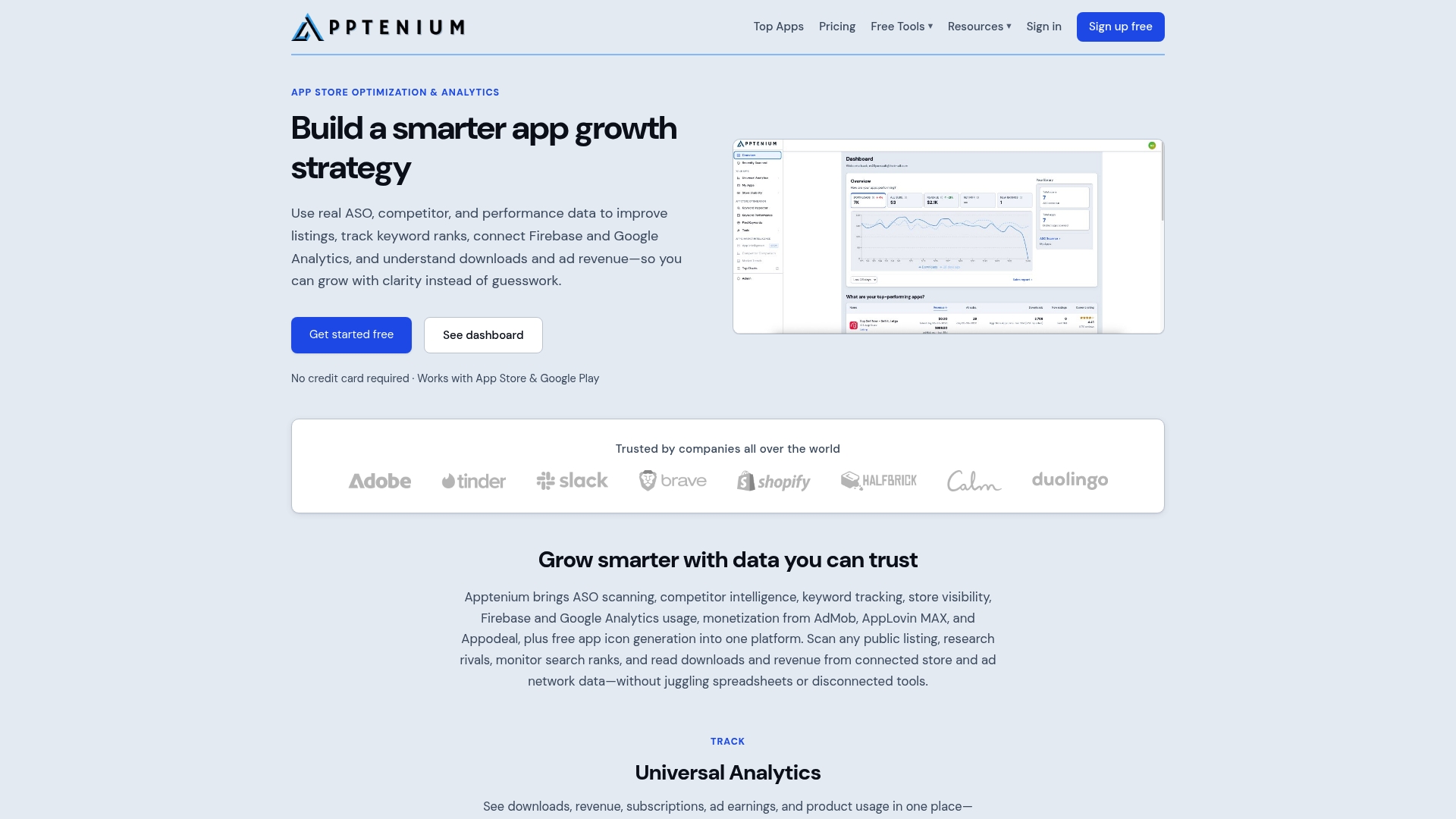
Auditing a keyword field by hand across title, subtitle, and every Custom Product Page gets tedious fast, especially once you are managing more than one app. We built the free scan in Apptenium to do that cross-check for you: connect your listing, see every duplicate flagged automatically, and export a de-duplicated keyword list in minutes instead of an afternoon.
- Start on the Free plan to run limited scans and see exactly where your current metadata overlaps.
- Upgrade to Pro for a monthly fee on our pricing page for unlimited scans, ongoing keyword tracking, and CPP planning support.
- The first small step: run one scan today and review the flagged duplicates before your next metadata edit.
If your stacking plan also spans multiple storefronts, pairing a clean keyword audit with proper localization matters just as much. Teams handling that without a full translation pipeline can look at automated localization workflows for generating localized metadata and iOS strings files without manual file handling.
| Plan | Price | Best for |
|---|---|---|
| Free | No published price | Running limited scans to catch duplicate keyword coverage |
| Pro | $9.99 per month | Unlimited scans, ongoing tracking, and CPP keyword planning |
FAQ
What are some free tools for app store keyword research?
Apple’s own keyword suggestion tool inside App Store Connect and Search Match data are free starting points, since they show what your app already ranks for without any added cost. A shared spreadsheet tracking keyword, placement date, and two-week impression and tap counts covers the measurement side for small teams at no cost.
How do I stack apps on my iPhone?
This question usually confuses two different things: organizing app icons into folders on your Home Screen, and keyword stacking for App Store visibility, which is a metadata strategy developers configure in App Store Connect. If you are asking about the metadata strategy, it means combining your title, subtitle, and hidden keyword field into one de-duplicated pool of search terms.
Does Apple still take 30%?
Apple’s commission structure varies by program, developer size, and region, and Apple has announced business-terms changes including a 2026 update affecting EU rules specifically. Check Apple’s current developer program documentation for the rate that applies to your specific business and region rather than relying on a single flat figure.
What are custom product pages?
Custom Product Pages are alternate versions of your App Store listing, each with its own screenshots, preview video, and keyword assignment, and they can appear directly in organic search results when configured through App Store Connect. Assigning each CPP a distinct keyword set, rather than duplicating your default listing, lets you target a separate search intent without competing against your own page.
How often should I update my keyword stack?
A biweekly or monthly review cadence works for most apps, giving enough time to collect meaningful impression and tap data before making another change. Update sooner only when you spot a clear cannibalization signal, like a new CPP’s gains mirroring losses on your default listing.
Sources
These Apple resources cover the technical limits, Custom Product Page setup, and keyword best practices referenced throughout this guide, and we recommend bookmarking them for ongoing reference.