Firebase Analytics for Apps: A Developer's Setup Guide
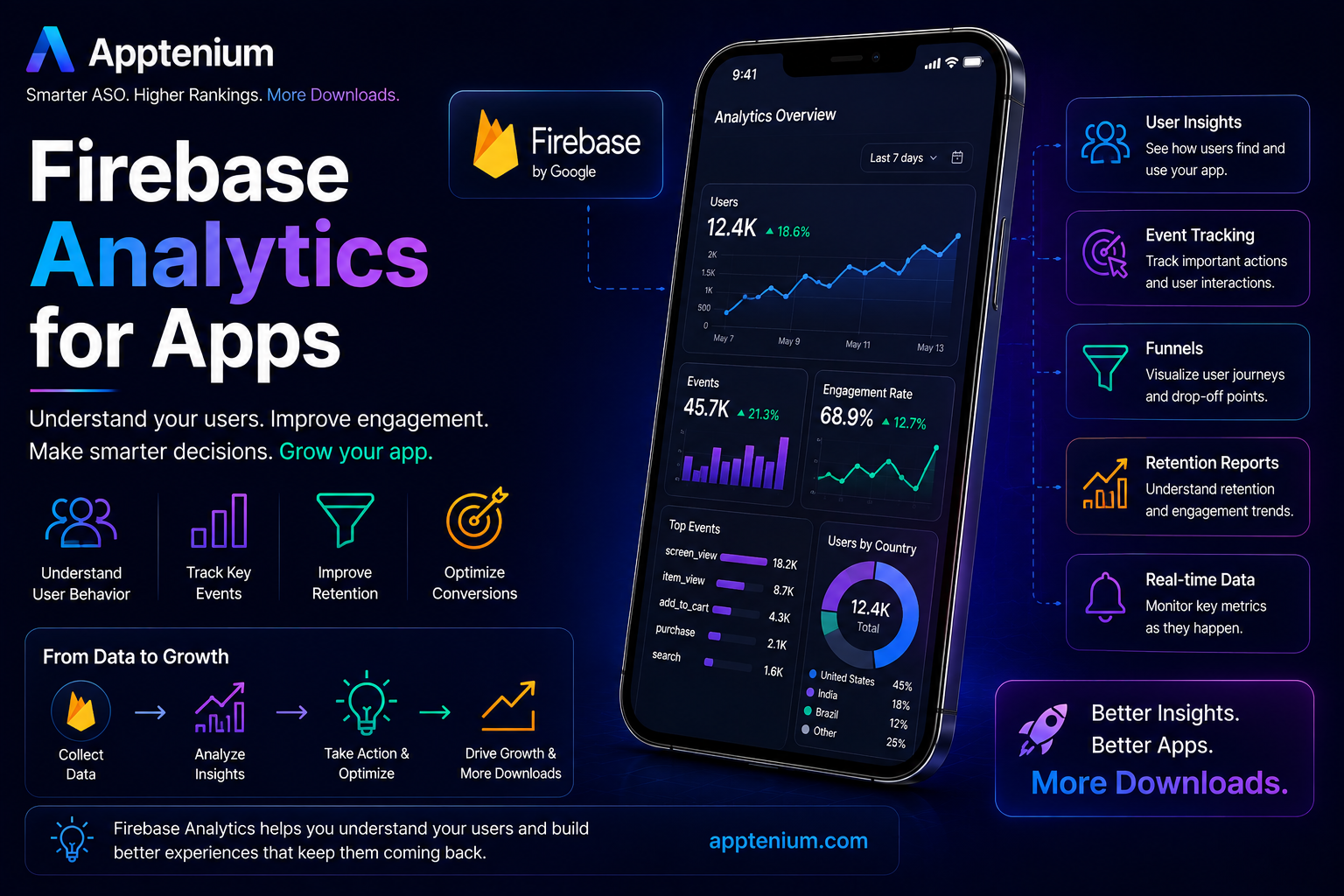
Firebase Analytics is Google’s free app measurement solution, and it’s the fastest legitimate path to understanding what users actually do inside your app. Add the SDK, enable Analytics in your Firebase project, and start logging events. Within hours, data starts populating your console.
Here’s the three-step path:
Add the Firebase SDK to your Android or iOS project and link it to a Firebase project.
Enable Google Analytics for that project, either at creation or later under Settings > Integrations.
Log events, starting with what Firebase automatically collects and layering in custom events for actions specific to your app.
Once you’re live, check DebugView for instant confirmation, and plan your BigQuery export path if you’ll need deeper analysis later.
Key Takeaways
Firebase Analytics for apps works best when console monitoring and BigQuery export handle different jobs, and every event maps to a real decision.
PointDetailsStart with the basicsAdd the SDK, enable Analytics, and confirm data in DebugView before building custom events.Use recommended events firstThey unlock richer built-in reports and stay compatible as Firebase adds new features.Watch your event budgetFirebase supports up to 500 distinct event names, so naming consistency protects that limit.Export to BigQuery for depthComplex funnels, cohorts, and LTV models need raw, unsampled data that console reports can’t provide.Pair analytics with ASOApptenium connects Firebase performance data with keyword and listing insights to close the loop between behavior and visibility.
Table of Contents
What Can You Actually Do With Firebase Analytics?
Firebase Analytics gives you two layers of measurement: what happens automatically, and what you define yourself. The automatic layer covers app installs, first opens, session starts, and screen views without you writing a line of tracking code. Layer custom events on top for anything business-specific, purchases, level completions, subscription upgrades, and Firebase pairs each with parameters and user properties for segmentation.
Where this becomes useful for marketers, not just engineers:
Build audiences from behavior and demographics for targeted messaging.
Measure conversions and attribute them back to specific ad campaigns.
Feed data into Google Ads for remarketing and campaign optimization.
The real value shows up through integrations. Analytics connects natively to BigQuery export, Crashlytics, Firebase Cloud Messaging, Remote Config, and Google Tag Manager, which means the data you collect doesn’t sit in a silo waiting for someone to export it manually.
How Does the Firebase Analytics Data Model Work?
Events are the core unit of measurement, and there are three flavors: automatically collected (app_open, session_start), recommended (purchase, level_up, tutorial_begin), and custom (whatever your product actually needs, like subscription_paused). Each event carries parameters, key value pairs that add context, like item_id or value on a purchase event.
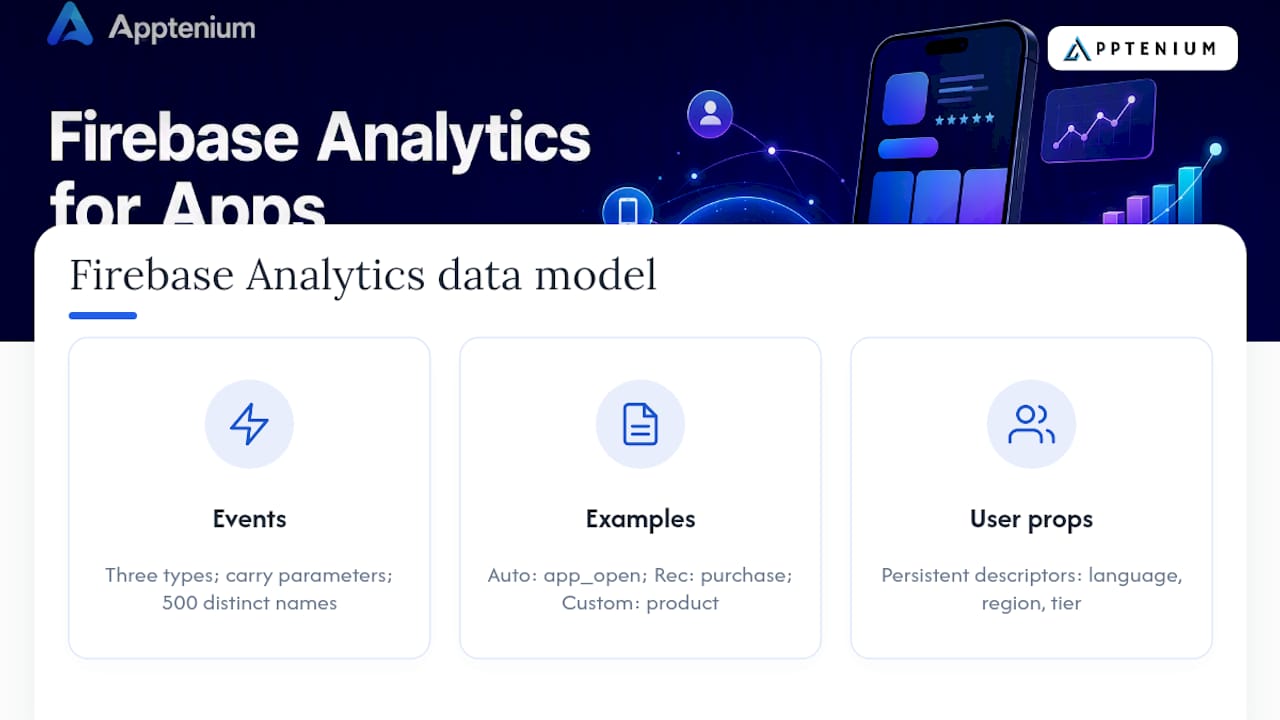
User properties work differently. They describe the person, not the action, things like language, region, or subscription tier, and they persist across sessions so you can segment reports by “premium users in Germany” or “users on the free tier for 30+ days.”
A few practical limits matter here. Firebase supports up to 500 distinct event names for report-level detail, and while that sounds like plenty, sloppy naming burns through it fast. Every slightly different event name (add_to_cart, addToCart, add-to-cart) counts as a separate event in that budget, even if they mean the same thing to you.
How Do You Set Up Firebase Analytics on Android and iOS?
Getting Firebase Analytics for apps running takes about 20 minutes if you follow the sequence in order. Skipping steps is the most common reason developers end up debugging “missing” data that was never being sent in the first place.
1. Enable Analytics at the project level. Turn it on during Firebase project creation, or retroactively under Settings > Integrations if the project already exists.
2. Add the SDK on Android. Use the Firebase Android BoM to manage dependency versions consistently, then add the firebase-analytics dependency:
implementation platform('com.google.firebase:firebase-bom:33.1.0')
implementation 'com.google.firebase:firebase-analytics'
Initialize FirebaseAnalytics in your activity and log your first event:
val analytics = Firebase.analytics
analytics.logEvent("tutorial_begin", null)
3. Add the SDK on iOS. Install the Analytics library via Swift Package Manager or CocoaPods, then configure FirebaseApp in your app delegate. Send a recommended event the same way:
Analytics.logEvent(AnalyticsEventTutorialBegin, parameters: nil)
4. Verify before you trust it. On Android, enable verbose logging with adb shell setprop log.tag.FA VERBOSE and watch logcat. On iOS, add -FIRAnalyticsDebugEnabled as a launch argument in your Xcode scheme, then check DebugView in the Firebase console.
Pro Tip: Use the Firebase BoM on Android instead of pinning individual library versions manually. It keeps every Firebase dependency compatible with every other one, and it saves you from a whole category of build errors that show up months later when you add a second Firebase feature.
Prefer recommended events over inventing your own names wherever Firebase already has an equivalent. Recommended events unlock richer built-in reports and stay compatible as Firebase adds features.
Which Events and User Properties Should You Actually Track?
Start with what’s automatic, then add recommended events before you ever write a fully custom one. Recommended events like purchase, level_up, and tutorial_complete come with expected parameter structures that Firebase’s reports already know how to visualize. Custom events are for genuinely unique actions your app has that Firebase hasn’t already named.
Naming consistency matters more than most teams expect. Pick one convention, snake_case is the Firebase default, and stick to it across your entire codebase and team. Keep parameter keys stable once you ship them; renaming item_price to price three months later fractures your historical reporting.
App VerticalRecommended EventCustom Event ExampleE-commercepurchasewishlist_sharedSubscription appssubscribeplan_downgrade_reasonedOnboarding-heavy appstutorial_completeonboarding_step_skippedGaminglevel_upboss_fight_retry
A few habits keep your data clean long term:
Avoid high-cardinality values (raw search text, long IDs) as event parameters; they inflate storage and skew reports.
Set
user_idimmediately after login for cross-device stitching, and confirm it propagates correctly in DebugView.Document your event schema somewhere your whole team can see it, not just in the code.
How Do You Turn Analytics Data Into Marketing Action?
Data sitting in a dashboard doesn’t grow your app. Firebase becomes useful the moment you connect events to decisions.
Build audiences directly in the console from event and property combinations, then reuse those same audiences across Remote Config experiments and FCM push targeting, no new app version required. Link Analytics to Google Ads, and conversion data flows back automatically, sharpening campaign bidding and unlocking remarketing lists. Crashlytics integration lets you segment users who hit a specific crash and target them once you’ve shipped the fix.

A typical loop looks like this: an event signals drop off at onboarding step three, you build an audience around it, run a Remote Config A/B test on a simplified flow, then measure the lift back in Analytics reports.
When Do You Need BigQuery Export?
Console reports are built for monitoring, not deep investigation. The moment you need a funnel with five or six steps, a cohort retention curve segmented by acquisition channel, or a custom lifetime value model, you need raw data.
BigQuery export gives you unsampled event streams you can join against ad platform data, run through machine learning models, or visualize in Looker Studio. Budget for query costs and design your dataset schema before your first export, not after.
How Do You Verify Your Events Are Actually Firing?
Trust nothing until you see it live. Two tools handle this:
DebugView shows device-level event streams in near real time, ideal for confirming a single test device is sending the right data during QA.
StreamView shows aggregate live activity across your whole app, useful once you’re past single-device testing.
Enable debug flags: verbose adb logging on Android,
-FIRAnalyticsDebugEnabledin Xcode on iOS.Check the usual suspects when something’s missing: mismatched event names, a forgotten parameter, the normal processing delay before data hits aggregated reports, or a
user_idthat never got set.
What Privacy Rules Apply to Firebase Analytics Data?
Firebase collects device-level and event-level data by default, which puts consent squarely on you, not Google. Build consent flows and privacy disclosures that match whatever jurisdiction your users are actually in, since GDPR and CCPA impose different obligations and neither one is optional background reading if you have European or Californian users.
Use Firebase’s built-in data retention controls to limit how long event-level data persists.
Disable ad personalization signals for users who haven’t consented to them.
Document exactly where data flows once it leaves the console, especially into BigQuery exports.
Loop in legal or compliance review before shipping any event that touches personal identifiers, and default to minimal, purpose-driven event design.
Instrument for Decisions, Not Data Hoarding
Most teams over-collect and under-analyze. Every event should map to a decision someone will actually make, not just a box to check on a tracking spec.
Console reports are fine for daily monitoring, but BigQuery export becomes non-optional the moment your questions get complex. Firebase makes the most sense when you’re already inside Google’s ecosystem; teams needing heavier dashboard customization sometimes look elsewhere, but the integration convenience usually wins for product teams shipping fast. Whatever you build, document your event schema and assign ownership across product, engineering, and marketing, because undocumented analytics rot within two release cycles.
Turning Firebase Data Into Store Growth
Firebase tells you what happens after install. It won’t tell you why fewer people are installing in the first place, or which keywords your competitors are quietly winning. That gap between behavioral data and store visibility is exactly where most app teams lose momentum without realizing it.
Apptenium closes that gap by pulling in your Firebase and Google Analytics data alongside ASO scanning, keyword tracking, and competitor intelligence, so a drop in retention you spot in Firebase can be checked against a listing or keyword ranking shift the same week, instead of months later. The platform’s AI recommendations flag listing changes that tend to move install conversion, backed by the same performance numbers, downloads, revenue, retention signals, you’re already tracking. If you’re managing an app portfolio and tired of jumping between three dashboards to answer one question, the best ASO tool for SMBs and startups is built to sit right next to your Firebase console, not replace it. Start a scan and see where your listing stands today.
Sources
Google Analytics for Firebase
FAQ
What Is the Best Analytics Software for Mobile Apps?
There’s no single best option for every team; Firebase Analytics is the strongest default because it’s free, unlimited on up to 500 event names, and natively wired into BigQuery, Crashlytics, and Remote Config. Teams needing heavier custom dashboards sometimes supplement it, but Firebase covers most product and marketing needs out of the box.
How Do I Use Firebase Analytics in My iOS App?
Install the Analytics library through Swift Package Manager or CocoaPods, configure FirebaseApp in your app delegate, and log a recommended event to confirm setup. Enable the -FIRAnalyticsDebugEnabled launch flag in Xcode to watch events appear in DebugView immediately.
Why Is Google Shutting Down Firebase Studio?
Firebase Studio and Firebase Analytics are separate products, Studio is a cloud-based app development environment, while Analytics is the measurement SDK covered throughout this guide, and any changes to Studio don’t affect Analytics availability or functionality.
Can Google Analytics Track Mobile Apps?
Yes, but for native app measurement specifically, Google Analytics for Firebase is the purpose-built product, sharing infrastructure with Google Analytics 4 while offering mobile-specific features like automatic screen tracking and native Firebase integrations.
How Do I Know if My Firebase Events Are Actually Working?
Check DebugView for device-level confirmation during testing, and StreamView for aggregate live activity once you’re past single-device QA. If an event still isn’t showing up, check for name mismatches, missing parameters, or the normal processing delay before data reaches full reports.