Ship a Better Play Store Description in One Sprint for App Teams

Ship a Better Play Store Description in One Sprint for App Teams
Your short description gets 80 characters, your full description gets 4,000, and Google Play indexes both for search relevance. That means your first sentence needs to do two jobs at once: work as a keyword-rich search signal and hook a reader who’s already scanning three other apps. Get the character limits wrong or bury your keyword on line six, and you’re fighting your own listing before a single install happens.
TL;DR:
- The short description is limited to 80 characters and appears directly in search results, making keyword placement and brevity crucial.
- The full description allows 4,000 characters and should incorporate keywords naturally, focusing on benefits and features, not keyword stuffing.
- Accurate formatting, such as bullet points and minimal bold text, improves readability across devices, and preview testing helps avoid visual issues.
- Avoid making unverified claims, superlatives without sources, or promotional language that could violate policies or lead to listing rejection.
- Regularly updating and testing descriptions through A/B experiments and localization ensures relevance, discoverability, and better conversion over time.
Table of Contents
- What Are the Play Store Description Fields and Limits?
- How Should You Format Play Store Descriptions?
- How Do You Optimize Play Store Descriptions for Keywords?
- What Role Do Screenshots and Videos Play Alongside Your Description?
- What Description Claims Violate Google Play Policy?
- Templates and Examples for Short and Long Descriptions
- How Do You A/B Test a Play Store Description?
- Localizing Your Description for Global Play Store Audiences
- Author Perspective: Description Work Is a Sprint Item, Not a One-Off Edit
- Apptenium Turns This Checklist Into a Repeatable Process
- Key Resources for Play Store Description Rules
- Sources
- FAQ
What Are the Play Store Description Fields and Limits?
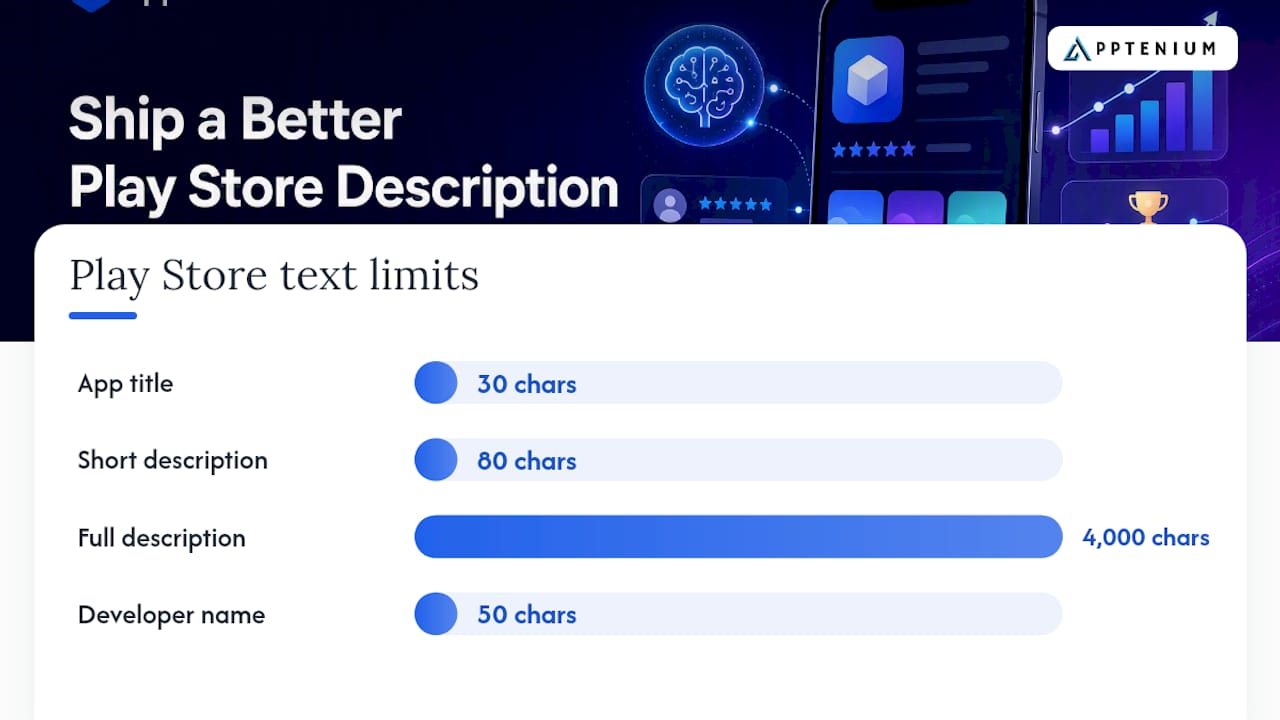
Every Play Store listing runs on a handful of text fields, and each one has a hard cap that Google Play Console enforces at submission. Miss the limit and Console simply won’t let you publish, so it pays to know the numbers before you start drafting.
Here’s what you’re working with:
- App title: 30 characters, heavily weighted for search relevance
- Short description: 80 characters, required to publish, and the only description text shown before a user taps “more”
- Full (long) description: 4,000 characters, fully indexed by Google Play’s search algorithm
- Developer name: capped at 50 characters, indexed but weighted lower than title or short description
Not every field carries the same weight. The full description gets indexed for search relevance, but a lot of that 4,000-character space functions more as a conversion surface than a ranking lever, since most readers never scroll past the first few lines. The short description is different. It’s compact, always visible in search results and on the app’s category page, and arguably the highest-leverage 80 characters in your entire listing.
Where these fields actually surface matters too. Your title and icon show up in search results and browse carousels. Your short description appears directly beneath the title on both the search results page and the listing page itself, before any tap-to-expand. The full description only appears once a user opens the listing, which is exactly why front-loading matters: you’re writing for skimmers who may never scroll to sentence four.
How Should You Format Play Store Descriptions?
Google Play supports basic formatting in the full description, including bullet points, bold text, and line breaks, but it does not support full HTML markup or embedded links that function as clickable text. What you type is largely what renders, so test your listing preview on both a phone and tablet layout before you publish, since bullet spacing and line breaks sometimes render differently across screen sizes.
A few practical rules for formatting:
- Use bullet points to break feature lists into scannable chunks, not paragraph-length sentences.
- Bold sparingly to flag one or two genuinely important phrases, like a core feature name or a pricing detail.
- Emojis can boost scannability in a short description, but overuse looks cluttered and some screen readers announce every emoji character aloud, which turns three consecutive icons into an accessibility problem. Emoji-heavy listings tend to perform best when the emoji replaces a word rather than decorating one.
- Write short, direct sentences. Screen readers and translation tools both handle simple syntax better than clause-heavy marketing copy.
Pro Tip: Copy your full description into a plain text editor before submitting. If a sentence still reads clearly with zero formatting, it will survive on every device, including older Android versions that render Play Store markup inconsistently.
Run a quick device check after publishing: open your live listing on a small-screen phone and a tablet. If a bullet wraps oddly or an emoji renders as a blank box, fix it before it costs you conversions.
How Do You Optimize Play Store Descriptions for Keywords?
The primary keyword belongs in your short description and in the first sentence of your full description, full stop. Google Play indexes both fields, and since Apple doesn’t index the App Store’s description field the same way, Android listings carry more search weight in the description itself than their iOS counterparts do.
Aim for your primary keyword to appear naturally three to five times across the full 4,000-character description, plus two or three semantic variants (synonyms, related feature terms, or the way a real user might phrase the search). Repeating the exact same phrase eight times reads as stuffing to both users and Google’s algorithm, and it kills the persuasive flow you need to convert a reader into an install.
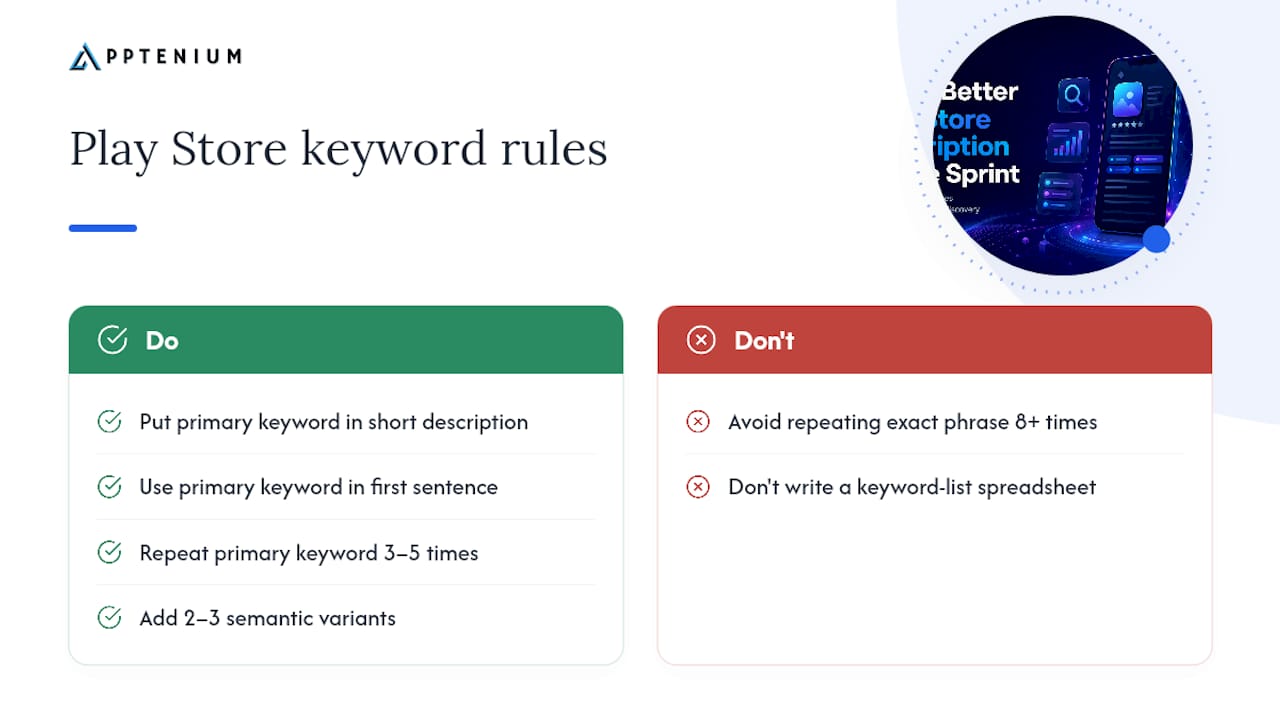
Feature-to-benefit bullets are where keyword and long-tail phrasing naturally overlap. Instead of “Track your budget,” write “Track your monthly budget across accounts, so you always know what’s left to spend.” That version carries a long-tail phrase a real searcher might type, while still reading like a benefit statement rather than a keyword list.
The real trade-off here is discoverability versus persuasion. A listing stuffed with keywords might rank, but if it reads like a spreadsheet, it won’t convert. Metadata drives initial relevance, but behavioral signals like install conversion and retention determine whether that ranking holds. Test both directions with a Store Listing Experiment before locking in a final version.
What Role Do Screenshots and Videos Play Alongside Your Description?
Google Play uses your feature graphic, screenshots, and preview video as the visual half of your pitch, and they need to complement your description rather than repeat it word for word. If your third bullet says “sync across devices,” your third screenshot should show that sync happening, not restate the same sentence as a caption.
A few things worth locking in before launch:
- Add short taglines directly on screenshots that add context your bullets don’t cover, like a specific use case or a stat.
- Google recommends multiple screenshots per supported device type (phone, tablet, and if relevant, Wear OS or TV), so your visuals actually reflect where the app runs.
- Preview video, when included, should show the core action a user takes in the first five seconds. Don’t save your best feature for the end.
- Keep your feature graphic simple. It’s the first visual users see in some placements, and cluttered text on it usually gets ignored.
One detail developers often miss: publishing on Google Play grants Google a license to use your uploaded assets for promotional purposes, a term spelled out in the Developer Distribution Agreement. Read that agreement once before your first submission, not after Google features your icon somewhere you didn’t expect.
What Description Claims Violate Google Play Policy?
Google Play’s policy team flags listings for language that sounds like marketing but reads like a guarantee, and description rejections cluster around a handful of repeat offenses. Knowing them in advance saves you a resubmission cycle.
- Ranking and award claims. Phrases like “#1 app” or “award-winning” are prohibited unless you can substantiate them with a verifiable, named source, and even then, Play Console guidance advises against unverifiable superlatives entirely.
- Unattributed testimonials. Quoting a “user” or “customer” without a real, attributable name and context reads as fabricated social proof, which Google Play’s store listing guidelines specifically call out.
- Misleading comparisons. Claiming to be “faster than the competition” without a defined, testable basis for that comparison invites a policy flag.
- Time-limited promotional language. Mentioning a sale price or limited-time offer inside the description itself risks becoming stale and misleading the moment the promotion ends, since descriptions aren’t reviewed on your promotional calendar.
- Ambiguous performance claims. “Increase your productivity by 200%” without a cited, verifiable study behind it reads as an unverifiable performance claim, the same category Play flags for health and finance apps most aggressively.
Before you submit, run your draft against a simple checklist: no superlatives you can’t source, no quoted testimonials without attribution, no comparison claims you can’t defend, and no promotional pricing baked into permanent copy.
Templates and Examples for Short and Long Descriptions
Three short-description structures cover most use cases, and which one you pick depends on whether your app is category-crowded, benefit-driven, or built for a narrow audience.
- Keyword-first: “[Primary keyword] app to [core benefit] — fast, simple, free.” Best when your category is competitive and search visibility matters more than a clever hook.
- Benefit-first: “[Core benefit] in seconds. No [common pain point], just results.” Works well when your app’s outcome is more compelling than its category label.
- Audience-first: “Built for [specific user type] who want [specific outcome].” Strongest for niche apps where the audience itself is the differentiator.
A full description holds up best with a modular structure: one hook sentence combining keyword and benefit, five to seven feature-to-benefit bullets, an optional line of social proof (download count, rating, or a named press mention — never an anonymous quote), and a closing call to action.
Here’s what that looks like assembled, annotated:
“Track spending, set budgets, and reach savings goals in one simple app.” (hook: keyword “budget app” implied, benefit stated) “• See every transaction across linked accounts in real time.” (feature→benefit, no forced keyword) “• Set monthly budget limits by category and get alerts before you overspend.” (long-tail phrase: ‘monthly budget limits’)
A quick copy hygiene pass before publishing catches most avoidable mistakes: check for repeated phrases, confirm bullet formatting renders on mobile, and verify that every localized string was translated in context, not run through a literal word swap. Tools like the Meta Description Generator from AmmarAI can speed up early drafts of benefit-led hooks before you refine them for Play Store’s character limits.
How Do You A/B Test a Play Store Description?
Store Listing Experiments let you run two or more versions of your listing against live traffic and measure which one actually performs better, rather than guessing based on gut feel or a competitor’s copy. Set one up by defining a control and one to two variants, then let Console split incoming traffic between them.
Before launching a test, confirm you’re tracking the right things:
- Impression-to-install conversion rate, the core metric an experiment is built to move.
- 1-day and 7-day retention, since a listing that oversells the app can spike installs while tanking retention.
- Uninstall and crash signals, which flag whether new copy is attracting the wrong audience.
Traffic splits matter more than most teams assume. A test running on a few hundred daily visits will take weeks to reach a result you can trust, and ending it early on a promising early lead is one of the most common experiment mistakes. Let the test run until you’ve got a large enough sample that the gap between variants isn’t just noise, then act on whichever version wins.
Behavioral signals ultimately decide whether a keyword-optimized listing sustains its ranking over time. A description that wins on installs but loses on retention is optimizing the wrong metric, so treat conversion as your primary signal and retention as your guardrail.
Localizing Your Description for Global Play Store Audiences
Localization means translating intent, not just words. A keyword that converts in English often has zero search volume in its literal translation, because the way people actually search for your app category shifts by market, not just by language.
Before you localize a listing, run these checks:
- Do native keyword research per market rather than translating your English keyword list directly.
- Test localized creatives (screenshots, feature graphic text) in-market, since a screenshot caption that reads naturally in English can look awkward or oversized once translated.
- Avoid multi-emoji strings in localized short descriptions. Some emoji combinations read as spam signals in certain markets, even when they perform fine in English-speaking ones.
- Keep sentences short across every locale. Screen readers and machine translation tools both handle simple syntax more reliably than long, clause-heavy copy.
- Decide deliberately between neutral, universal messaging and market-specific phrasing. A fitness app’s “beach body” hook might convert in one region and fall flat, or worse, feel off-tone, in another.
Author Perspective: Description Work Is a Sprint Item, Not a One-Off Edit
Most teams treat the Play Store description like a launch-day task: write it once, ship it, forget it. That’s the biggest mistake I see across app teams. Description copy decays. A feature you launched eighteen months ago might still be your third bullet point, while the feature users actually care about now is buried in paragraph four, or missing entirely.
The teams that get real lift from description work treat every update like a small sprint: someone owns the copy draft, someone QAs formatting across devices before it ships, someone runs the localization pass, and someone defines the experiment’s success metric before the test goes live. Skip any one of those roles and you end up with a listing that looks fine in English on a phone, and breaks in three other ways nobody caught.
When copy and creatives get iterated together rather than separately, the compounding effect is real: a sharper hook sentence paired with a screenshot that actually shows that hook in action tends to move conversion more than either change alone. If you want a fast read on where your current listing stands before you touch a word of copy, running it through Apptenium’s free ASO Scanner is a reasonable first step. It flags the gaps worth fixing first.
— Mike
Apptenium Turns This Checklist Into a Repeatable Process
Manage your Play Store update tasks in one platform to streamline checking character limits, keyword placement, and competitor listings, combining ASO scanning, AI-powered recommendations, and competitor intelligence in a single dashboard that integrates data from Firebase and Google Analytics for insights on downloads and revenue.
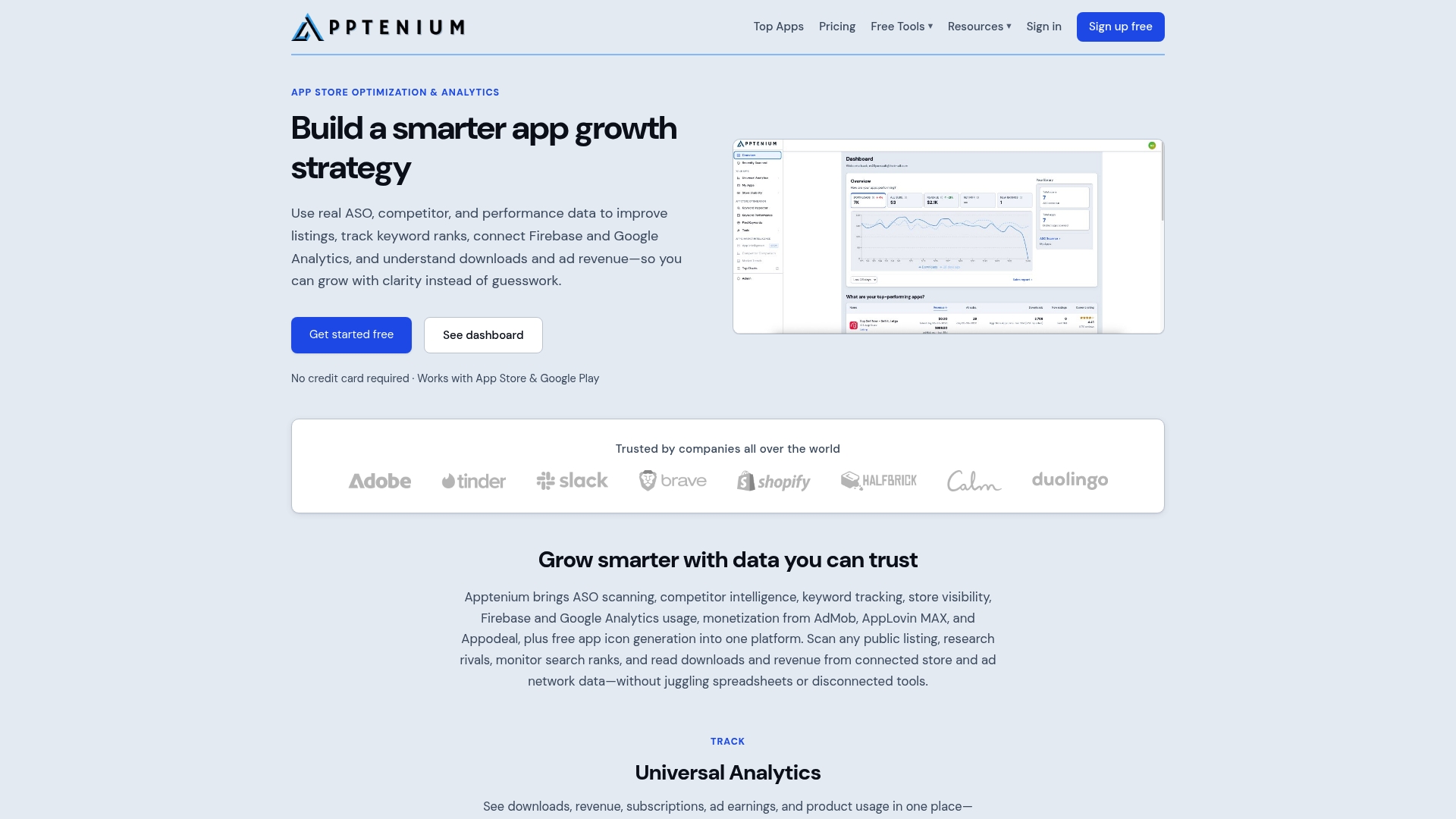
Start with the free ASO Scanner to see exactly where your current short description, full description, and keyword placement stand against the rules covered above. From there, Apptenium’s feature set helps you track keyword performance over time and run informed comparisons before you commit to a Store Listing Experiment. If you’re deciding between platforms, the comparison built for SMBs and startups breaks down what matters most for teams your size. Run the scan, fix what it flags, and test the result.
Key Resources for Play Store Description Rules
For the technical rules that govern every field discussed above, Google’s own store listing best practices covers character limits and prohibited claims directly from the source. The preview assets documentation explains how screenshots, feature graphics, and video interact with your listing, plus the licensing terms tied to the Developer Distribution Agreement. For the broader ASO strategy question of how metadata and behavioral signals interact, Search Engine Journal’s ASO guide is worth a full read.
Sources
- Best practices for your store listing - Play Console Help
- Store listings | Google Play Console
- App store optimization (ASO) how-to guide - Search Engine Journal
FAQ
What’s the Difference Between Google Play and the Play Store?
Google Play is the umbrella platform, including services like Play Games and Play Protect, while the Play Store is specifically the storefront where users browse, search, and download apps. Your description work lives entirely within the Play Store experience.
What Is the Google Play Store and What Does It Do?
The Google Play Store is Android’s official app marketplace, where users search for, review, and install apps and games. It’s also the primary place your app description and preview assets get indexed and displayed to potential installers.
How Do I Change My Play Store App Description?
Log into Google Play Console, select your app, go to the “Main store listing” page under Store presence, and edit your short or full description directly. Changes typically go live within a few hours after you save and publish, though full review can take longer for new apps.
How Should I Open the Play Store?
On an Android device, tap the Play Store icon on your home screen or app drawer, or search for “Play Store” through your device’s app search. As a developer, you’ll manage the listing itself through Play Console rather than the consumer-facing app.