App Store Metadata Policy: What Apple and Google Allow

App Store Metadata Policy: What Apple and Google Allow
App Store metadata policy is the set of rules that decide what you may put in your app’s name, subtitle, keywords, description, screenshots and previews. In short: everything must accurately describe the app as it works today, nothing may be stuffed with trademarks, competitor names, prices or irrelevant phrases, and the name must stay within 30 characters on both Apple’s App Store and Google Play. This guide walks through each field, the limits that apply, the mistakes that trigger rejections, and how to fix a metadata rejection quickly.
TL;DR
- Apple treats metadata as the privacy information, description, screenshots and previews, and requires all of it to reflect the app’s core experience and stay current with each version.
- App names are capped at 30 characters on both stores. Apple keywords are capped at 100 characters, comma separated, with no spaces between terms.
- Trademarked terms, competing app names, prices and irrelevant phrases are the most common reasons metadata gets rejected.
- Google Play adds its own rules: no emojis or repeated special characters in the title, no ranking or price claims in the title or icon, and no anonymous testimonials in the description.
- If your metadata is rejected, read the message in App Store Connect, fix the flagged field, and reply to App Review.
Table of Contents
- What counts as App Store metadata
- Apple’s rules for names, subtitles and keywords
- What Apple prohibits in metadata
- Descriptions, screenshots, previews and icons
- How Google Play’s metadata policy compares
- Localizing metadata without breaking policy
- Editing metadata after submission and fixing rejections
- Keeping metadata accurate over time
- Our perspective
- Check your listing with Apptenium
- FAQ
- Sources
What counts as App Store metadata
Metadata is every piece of descriptive information attached to your listing. Apple’s App Review Guidelines state that app metadata includes privacy information, the app description, screenshots and previews. They also say it must accurately reflect the app’s core experience and be kept up to date with new versions.
In practice, you manage these fields:
| Field | Where it appears | Main rule to remember |
|---|---|---|
| App name | Product page, search results | Unique, 30 characters maximum |
| Subtitle | Product page, search results | No inappropriate content, other apps or unverifiable claims |
| Keywords | Hidden, used for search | 100 characters total, comma separated |
| Description | Product page, web search | Required, 4,000 characters, no HTML |
| Screenshots | Product page | Must show the app in use |
| App previews | Product page | Video screen captures of the app itself |
| Icon | Everywhere | Must fit a 4+ age rating |
| Notes for Review | Visible to App Review only | Specific description of new features |
The policy has one idea behind it: what you promise on the listing must be what the user gets after install. Every rule below follows from that.
Apple’s rules for names, subtitles and keywords
App names
Apple requires a unique app name limited to 30 characters, according to the App Review Guidelines. Apple’s own guideline update notice from 2021 made the same point and added that names, subtitles, screenshots and previews should not carry prices or other irrelevant phrases meant to game the system.
A sound name pattern is your brand plus one or two words that describe the function. Skip “best,” “#1,” price tags and the names of other apps. Those add risk and rarely add installs.
Subtitles
Subtitles follow the standard metadata rules. Per the guidelines, they should not include inappropriate content, reference other apps, or make product claims you cannot verify. “The fastest budgeting app” is a claim you would have to prove. “Budget planner for couples” describes what the app does. For a method to test candidates within the 30-character limit, see our guide to app subtitle optimization.
The keyword field
Apple’s product page guidance sets the keyword field at 100 characters total. Terms are separated by commas with no spaces, though spaces can sit inside a phrase (Apple’s example is Property,House,Real Estate). Apple’s App Store search page adds that you should not repeat words already in the app name, subtitle or category.
In App Store Connect, the Keywords property is required and can be localized. Keywords must not duplicate the app name or company name, because the app is already searchable by those values, and names of other apps or companies are not allowed.
A quick audit of your field:
- Remove any word already in your name, subtitle or category.
- Remove spaces after commas.
- Delete plurals and duplicates you have repeated across terms.
- Delete any brand, celebrity or competitor name.
- Check that every remaining term describes something the app really does.
For the mechanics, our walkthrough on cleaning a 100-character keyword stack and the explainer on how the App Store indexes keywords go deeper. If you want to know which low-value words to cut first, see App Store stop words.
What Apple prohibits in metadata
Apple’s product page guidance calls improper keyword use a common reason for rejection. The prohibited categories are:
- Unauthorized use of trademarked terms, celebrity names or protected phrases
- Terms not relevant to the app
- Names of competing apps
- Irrelevant, inappropriate, offensive or objectionable terms
The App Review Guidelines go further: do not pack metadata with trademarked terms, popular app names, pricing information or irrelevant phrases. Misleading marketing, such as promoting content or services the app does not offer, or promoting a false price, can be grounds for removal from the App Store.
Three patterns cause most trouble:
- Borrowed brand names. Adding a famous app’s name to your keywords to catch its searches is both a trademark risk and a guideline violation. Our guides on trademark keywords, forbidden keywords and banned keywords on iOS cover how to spot them before you submit.
- Price talk. “Free,” “50% off” and “$0.99” do not belong in the name, subtitle, screenshots or previews. Prices change, and the store already displays the current one.
- Feature promises. If a screenshot or description mentions a feature that is not in the build, expect a metadata rejection. Keeping your listing in sync with each release is part of the policy, not a courtesy.
Descriptions, screenshots, previews and icons
Description
In App Store Connect the description is required, can be localized, is limited to 4,000 characters and does not support HTML. Apple notes it appears on the product page and is used for web search results once the app is released. That makes it worth writing for people first: the first lines should state what the app does and who it is for. Our guide to AI-assisted app descriptions shows a prompt structure for drafting short and long versions, which you should always edit against what the app really does.
Screenshots and previews
Screenshots must show the app in use, and text and image overlays are allowed. Previews may only use video screen captures of the app itself, with limited exceptions. Both are covered in the App Review Guidelines. A lifestyle montage with no real interface will not pass as a preview. For pacing and structure, see our app preview video guide.
Icons and age rating
Icons, screenshots and previews must adhere to a 4+ age rating even if the app itself is rated higher. If your app is rated 17+, your creative still has to look suitable for every audience.
Notes for Review
New features, functionality and product changes must be described with specificity in the Notes for Review section of App Store Connect, and generic descriptions will be rejected. “Bug fixes” is not a note. “Added Apple Pay checkout on the cart screen; test account below” is.
How Google Play’s metadata policy compares
Google’s Metadata policy in Play Console Help shares Apple’s philosophy: metadata must be honest, relevant and suitable for all audiences. It prohibits misleading, improperly formatted, non-descriptive, irrelevant, excessive or inappropriate metadata across the description, developer name, title, icon, screenshots and promotional images.
The differences that matter in daily work:
| Topic | Apple App Store | Google Play |
|---|---|---|
| Name or title limit | 30 characters | 30 characters |
| Hidden keyword field | Yes, 100 characters | No, the description and title carry the weight |
| Emojis in title | Not addressed in the sources above | Not allowed in title, icon or developer name |
| Ranking or price text in title | Prices prohibited in metadata | Not allowed in title, icon or developer name |
| Testimonials | Not addressed in the sources above | No unattributed or anonymous testimonials in the description |
| Keyword repetition | Do not repeat words across fields | Repetitive or unrelated keywords prohibited |
Google also warns that excessive length, detail, improper formatting or repetition in a description can be a violation. Because Google Play has no separate keyword field, repeating a phrase many times in the description is the tactic most likely to hurt you there. Write natural sentences, and use your target phrases where they fit.
If you ship on both stores, build one master listing, then adjust per store. Keep the shared name within 30 characters, strip prices and ranking claims everywhere, and keep Apple’s 100-character keyword field as an Apple-only asset.

Localizing metadata without breaking policy
Apple states in its asset best practices that you can localize metadata, including images and videos, to tailor content to each region or country. Keywords can be localized too. Every localized version is subject to the same rules, so a Spanish keyword that names a competitor is as risky as an English one.
A safe workflow:
- Translate meaning, not word for word. Check how real users in that market describe the problem.
- Re-check the 30-character name and 100-character keyword limits, because translated text often runs longer.
- Re-scan for trademarks and competitor names in the local language.
- Update screenshots so the text overlays match the language of the listing.
Editing metadata after submission and fixing rejections
When a submission is in “Waiting for Review,” Apple’s status reference says you can edit certain app information and remove the build from review, but you cannot upload or edit screenshots or app previews. For “Metadata Rejected,” read the message, edit the metadata to resolve the issue, and reply to App Review.
When the status reads “Accepted,” the app publishes only once every item in the submission is accepted. You can edit rejected items and resubmit, or remove them to move forward.
A practical rejection routine:
- Copy the exact guideline cited in the rejection message.
- Find the field in your listing that matches it: usually the name, subtitle, keywords or a screenshot overlay.
- Fix every instance across all localizations, not just the one named.
- Reply to App Review stating what you changed.
- Log the change so you can compare ranking and install conversion afterward.
One more point: “What’s New in this Version” is required for version updates, per Apple’s required and editable properties page. Write it as carefully as any other metadata, since vague release text is an easy place to mismatch the listing.
Keeping metadata accurate over time
Policy compliance is not a one-time check. Every release can change what the app does, and every competitor update can change which phrases you should target. Treat the listing like part of the product: review it at each version, track keyword rank changes, and keep a record of what you edited and when. Our guide to measuring ASO impact lays out a framework for connecting each metadata change to results.
If your site also describes the app, structured data helps search engines read the same facts. This guide to SoftwareApplication schema markup shows how to keep that page data consistent with your store listing.
Our perspective
Most metadata rejections we see come from the same root cause: the listing was written once and never reconciled with the product. Teams keep adding keywords, then wonder why a reviewer flags a feature that shipped two versions ago or a term that belongs to someone else.
Our view is that compliance and optimization are the same job. A clean listing, with accurate claims and relevant keywords inside the limits, is the foundation that ranking work compounds on. That is why we built Apptenium to bring ASO scanning, keyword tracking and competitor intelligence into one place, with AI recommendations designed to give you copy-ready fixes after each scan.
When your listing data, keyword rank and performance numbers such as downloads and revenue sit side by side, you can see which edit helped and which one only added risk. That clarity is what lets a small team ship metadata changes confidently instead of guessing.
Mike
Check your listing with Apptenium
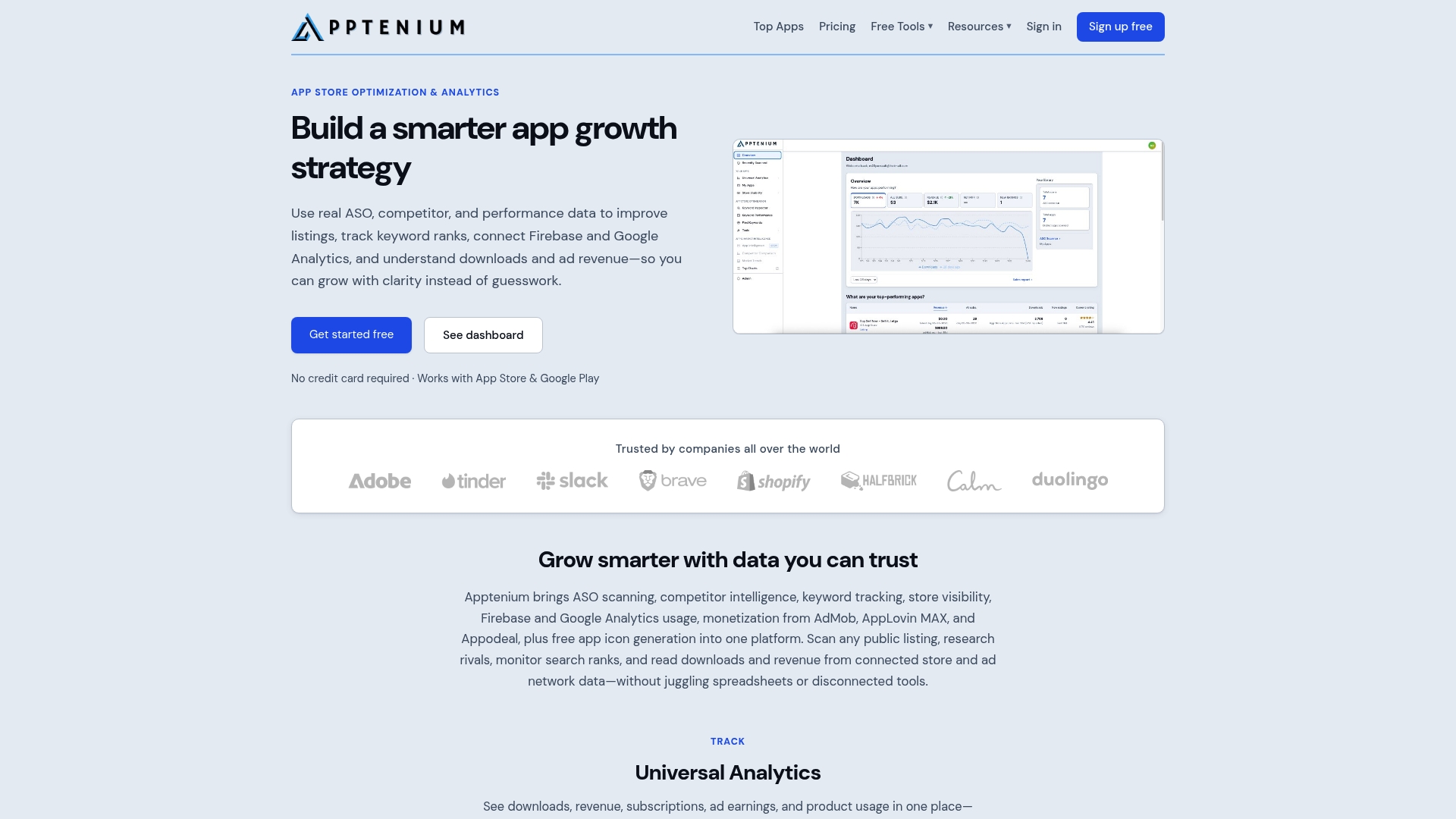
Before your next submission, run your listing through our scanner. Apptenium reviews your app metadata and returns practical, copy-ready suggestions, and you can then track keywords and competitors from the same dashboard. You can start with the free ASO tools, which include the scanner and an icon generator. The Free plan has a limited number of scans per month. The Pro plan costs $9.99 per month and adds unlimited scans and premium features; see the pricing page for details.
If you manage several apps or want to watch how rivals change their listings, our ASO tools overview and competitor intelligence pages show how the pieces fit.
FAQ
How many characters can an App Store app name have?
Apple limits app names to 30 characters, and the name must be unique. Google Play also requires titles of 30 characters or fewer. Keep prices, ranking claims and other app names out of it.
Can I edit my metadata while my app is in review?
Partly. While a submission is “Waiting for Review,” you can edit certain app information, but you cannot upload or edit screenshots or app previews. Check Apple’s status reference in App Store Connect for the fields available at each status.
Why was my app rejected for metadata?
The usual causes are trademarked terms, competing app names, irrelevant keywords, prices in the name or screenshots, and descriptions or images that promise features the app does not have. Read the message in App Store Connect, correct the field it names, and reply to App Review.
Is the Apple keyword field the same on Google Play?
No. Apple has a hidden 100-character keyword field with comma-separated terms. Google Play has no separate keyword field, so title and description carry the search signal, and repetitive or unrelated keywords are prohibited there.
Do I need separate metadata for each country?
You do not have to, but Apple lets you localize metadata, including images and videos, for each region. Each localized version must meet the same policy, so check limits and trademarks in every language.
Sources
- App Review Guidelines, Apple Developer
- App Store Review Guideline updates, Apple Developer News
- Creating Your Product Page, Apple Developer
- App Store search, Apple Developer
- Platform version information, App Store Connect Help
- App and submission statuses, App Store Connect Help
- Required, localizable, and editable properties, App Store Connect Help
- App Store Asset Best Practices and Resources, Apple Developer
- Metadata, Play Console Help