App Keyword Tagging: How to Choose and Place Keywords

App Keyword Tagging: How to Choose and Place Keywords
App keyword tagging is the practice of choosing the terms that describe your app and placing them in the metadata fields each store reads for search. On the App Store that means the title, subtitle and a hidden keyword field. On Google Play it means the title, short description and full description. Done well, it helps the right people find your listing. Done badly, it buries your app beneath competitors or gets your update rejected.
This guide covers what the stores say about keyword metadata, how to find and score candidate terms, where each one goes, which mistakes to avoid, and how to track results so your tags improve over time.
TL;DR
- Keywords are one input to search, not the whole story. Apple combines text relevance with user behavior such as downloads, ratings and reviews.
- Pick terms by relevance first, then weigh search popularity against competition. Specific, lower-competition phrases are often the best starting point for newer apps.
- On the App Store you get a 100-character keyword field. On Google Play there is no hidden field, so keywords must live in natural-reading text.
- Avoid duplicates, competitor names, irrelevant terms and repetition. Google Play explicitly prohibits keyword stuffing.
- Treat tagging as a loop: change a small set of terms, measure rank and installs, then repeat.
Table of Contents
- What app keyword tagging actually does
- How the App Store and Google Play differ
- Step 1: Build a long list of candidate keywords
- Step 2: Score keywords by relevance, popularity and competition
- Step 3: Place keywords where they carry the most weight
- Mistakes that waste space or risk rejection
- Our perspective: tagging is a measurement problem
- Step 4: Track performance and update your tags
- Put your keyword tagging on one dashboard
- A worked example
- Quick checklist before you publish
- FAQ
- Sources
What app keyword tagging actually does
When someone searches a store, the store has to decide which apps are relevant and in what order to show them. Your metadata is how you tell it what your app is about.
Apple says that keywords help determine where your app appears in search results, and that ratings and reviews also influence search rank. Its search documentation adds detail: App Store search uses text relevance from the title, subtitle, keywords and primary category, together with user behavior, including downloads, ratings and reviews.
That has a practical consequence. Tagging gets you into the set of results. Your icon, screenshots, ratings and install conversion rate help decide whether you stay near the top. Apple makes the same point in its guidance on discovery: discoverability is not determined by keywords alone.
Google Play works differently in the details. Google says Play search considers factors such as the app title, developer name and descriptions, and that results can vary by device, location, carrier and ongoing ranking changes. So two people can see slightly different results for the same query, and you should treat any single rank check as a snapshot.
How the App Store and Google Play differ
The biggest difference is the dedicated keyword field. Apple gives you one. Google does not.
| Apple App Store | Google Play | |
|---|---|---|
| Hidden keyword field | Yes, 100 characters | No |
| Main searchable text | Title, subtitle, keyword field, primary category | Title, short description, full description, developer name |
| Short text field | Subtitle | Short description, 80 characters or less |
| Long description | Not used for search ranking in the same way | Up to 4,000 characters, and it is read for relevance |
| Stuffing rules | Irrelevant terms, competitor names and unauthorized trademarks are not allowed | Repetitive, excessive or unrelated keywords are prohibited |
Google’s own guidance on listings confirms the Play limits: a full description allows 4,000 characters, and a short description should be 80 characters or less. Apple confirms that the keyword field is limited to 100 characters in total, with terms separated by commas and no spaces after the commas, though spaces can appear inside a phrase.
Two more Apple details are worth knowing. Promotional text does not affect App Store search ranking, so do not spend effort stuffing terms there. And custom product pages can be assigned keywords so that selected queries lead to a matching page, as long as each keyword combination matches that page’s intent and is unique to one page.
The takeaway: on iOS you tag deliberately and compactly. On Android you tag by writing clear, natural copy where your priority phrases appear in the right places.

Step 1: Build a long list of candidate keywords
Start wide, then narrow. Apple’s guidance is to begin with words people may use to find an app like yours, then choose specific terms that describe your features and functionality. Apple Ads suggests drawing on customer language, the app name, service terms, user needs, use cases, and both general and specific terms.
Six sources produce most of a good list:
- Your own features and outcomes. Write down what the app does and what the user gets. “Track expenses” is a feature. “Split bills with roommates” is a use case.
- Customer language. Read your reviews, support tickets and survey answers. Users rarely use your internal product vocabulary.
- Competitor listings. Look at the titles, subtitles and descriptions of apps ranking for terms you care about. Our competitor intelligence tools show which keywords rivals rank for, so you can spot gaps.
- Synonyms and variants. “Workout”, “exercise”, “fitness” and “gym log” can attract different searchers.
- Store autocomplete. Type a seed term into store search and note the suggestions. They reflect what people actually type.
- AI suggestions. Generated lists are a fast way to widen your net. Treat them as candidates to verify, not answers.
At this stage you want 100 or more candidates. Do not judge them yet.
Step 2: Score keywords by relevance, popularity and competition
Three questions sort a long list quickly.
Is it relevant? If a user who searches this term would not want your app, drop it. Irrelevant traffic does not convert, and low conversion can hurt the behavior signals Apple says it uses. Relevance always comes first.
How popular is it? Apple describes a trade-off between popular, high-traffic terms that are competitive and less common terms that bring less traffic but may be less competitive. Both belong in a portfolio.
How hard is it to rank? A term with huge volume and ten entrenched giants may never move you. A term with modest volume and weak competition can deliver steady installs within weeks.
If you have a new app or a small ratings base, lean toward specific multi-word phrases. The same principle applies to web search: choosing low competition keywords by balancing demand, relevance and difficulty is how smaller players win early traffic. In app stores, the equivalent is a phrase like “invoice maker for freelancers” rather than “invoice”.
Intent matters too. Apple Ads notes that search terms are a strong intent signal and recommends focusing on relevant, popular keywords rather than chasing every possible term. A searcher typing “budget planner for couples” knows what they want. A searcher typing “money” could want anything.
A simple scoring sheet works:
| Keyword | Relevance (1-5) | Popularity (1-5) | Competition (1-5, low is better) | Decision |
|---|---|---|---|---|
| budget planner | 5 | 5 | 5 | Title, long-term goal |
| budget planner for couples | 5 | 2 | 2 | Subtitle or keyword field now |
| money | 2 | 5 | 5 | Drop |
| shared expenses | 4 | 3 | 3 | Keyword field |
The numbers above are an illustration of the method, not real data. Fill the sheet with figures from your own keyword tool.
Step 3: Place keywords where they carry the most weight
Placement matters as much as selection. Put your strongest, most relevant terms in the fields the store weighs most, and use the rest of the space for coverage.
On the App Store
- Title and subtitle. Both feed text relevance, according to Apple’s search documentation. Combine your brand with your single most important phrase, then use the subtitle for a second angle.
- Keyword field. Use all 100 characters. Separate terms with commas and no spaces after them. Do not repeat words that already appear in your title or subtitle, since repetition wastes space.
- Category. Primary category counts toward relevance, so choose the one that fits best.
Because the stores combine words into phrases, you rarely need to write every combination. Single words in the keyword field can pair with words in the title to form multiword matches. Verify this on your own app by checking rank for the combined phrase after an update.
On Google Play
- Title. The most prominent text. Keep it readable and honest.
- Short description. Eighty characters or fewer. Lead with the benefit and include your main phrase naturally.
- Full description. Use the 4,000 characters to explain what the app does in plain sentences. Work your priority phrases into the opening lines and into feature descriptions, but never as lists of words.
Google’s metadata policy asks for honest, relevant metadata and prohibits repetitive, excessive or unrelated keywords. It also recommends an accurate, succinct, straightforward description. A description written for humans is also the safest description for ranking.
Mistakes that waste space or risk rejection
Apple’s guidance lists what to leave out of the keyword field. Avoid duplicate words, plurals already covered, category names, the word “app”, and special characters that add no search weight. Do not include irrelevant terms, competing app names, unauthorized trademarks, celebrity names or offensive terms.
The most common mistakes we see:
- Repeating a word across fields. It uses characters that could carry a new term.
- Paying for popularity you cannot win. A term with intense competition and no chance of a top-ten position adds little.
- Using competitor brand names. Besides policy risk, it attracts people looking for someone else’s product.
- Writing keyword lists into the Play description. Google says that app descriptions should help users understand functionality and purpose, and that repetitive keywords and unrelated word lists are prohibited.
- Tagging and forgetting. Search behavior shifts, competitors update, and your own app gains features. A keyword set that was right a year ago may be stale.
- Changing everything at once. If you rewrite the title, subtitle and keywords together, you cannot tell which change moved the needle.
Our perspective: tagging is a measurement problem
Most advice on keyword tagging stops at the list. We think the list is the easy part. The hard part is knowing whether a change worked.
In our view, strong tagging has three habits. First, you keep a clear record of which terms you target and where they sit, so you can tie rank movements to specific edits. Second, you watch competitors, because a rival’s update can shift your results even when you changed nothing. Third, you connect keyword rank to outcomes such as downloads and revenue, not just to position. A term ranking third that sends no paying users is worth less than a term ranking ninth that sends many.
That is why we built Apptenium to keep listing scans, keyword tracking, competitor data and performance reporting in one place, with copy-ready fixes from each scan. Fragmented tools make it hard to see cause and effect. Fewer tabs means faster iteration, and iteration is where ASO compounds over time.
— Mike
Step 4: Track performance and update your tags
Tagging is a cycle. A workable rhythm looks like this:
- Set a baseline. Before you change anything, record your rank for 20 to 50 target keywords, plus your impressions, product page views and install conversion rate from the store’s own console.
- Change a small set of terms. Swap a handful of keywords, or revise the subtitle or short description. Keep notes on exactly what you changed and when.
- Wait for the store to reflect the change. On iOS, keyword changes ship with a new app version. On Google Play, listing edits can be published without a new build. Allow time before judging, because rankings settle gradually.
- Compare. Look at rank, then at impressions and installs for the affected queries. Remember that Google notes results can vary by device, location and carrier, so look at trends over several days instead of single checks.
- Keep, revert or extend. Keep winners, drop terms that gained nothing, and test the next batch.
Pay attention to seasonality, version launches and new competitors, since any of them can explain movement that has nothing to do with your edits. Tracking rivals alongside your own keywords gives you the context to read the numbers correctly.
A review cadence of every few weeks suits most apps. Larger portfolios often review monthly and go deeper after a major feature release.
Put your keyword tagging on one dashboard
If you manage tags in spreadsheets, the work of checking rank, comparing rivals and tying changes to installs gets heavy fast. Our ASO tools scan your listing metadata, track keywords and competitors, and give you AI-powered suggestions you can paste into your listing. You can also connect Firebase and Google Analytics data to see how rank changes line up with downloads and revenue.
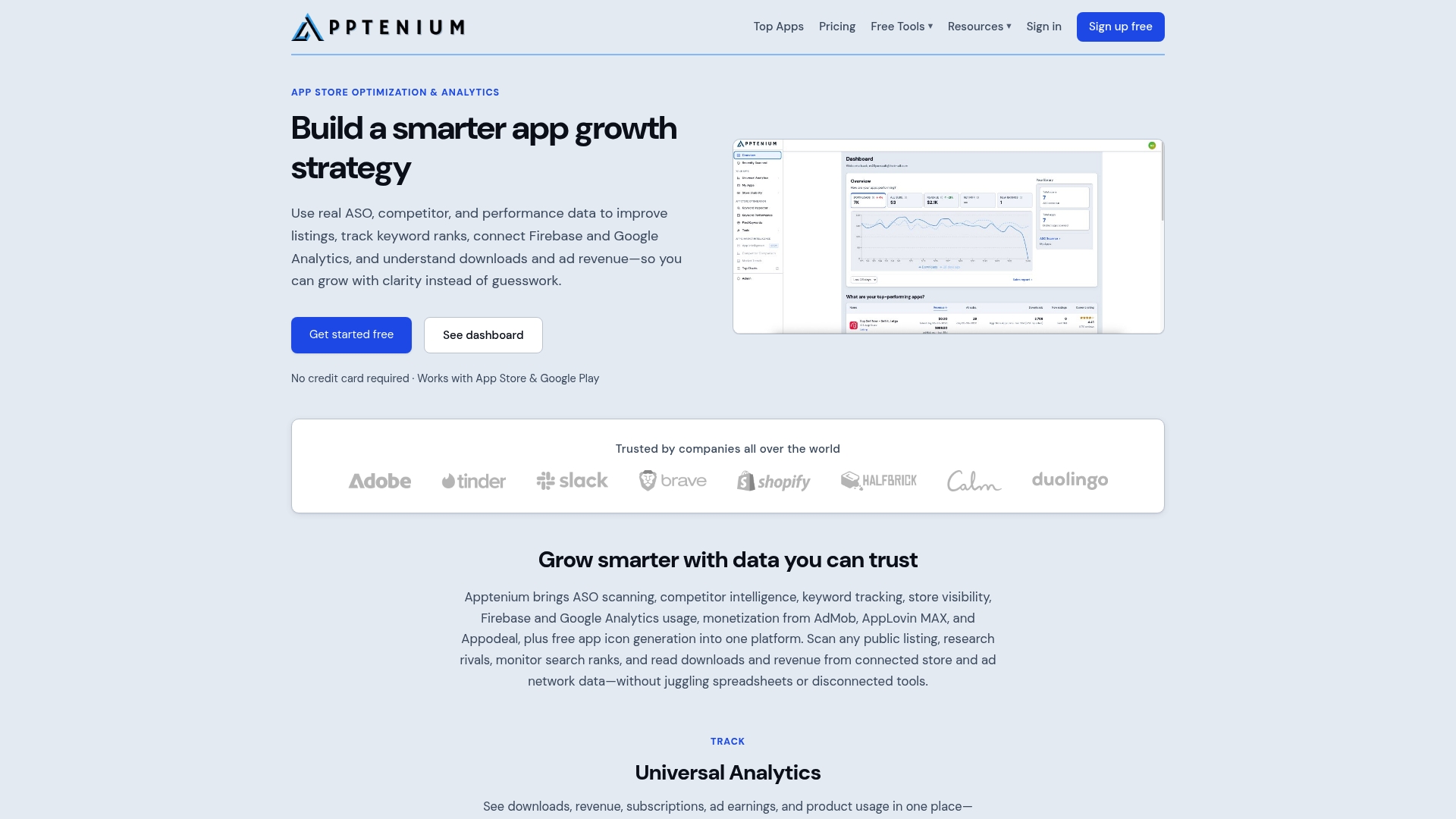
There is a free plan with a limited number of scans per month, and the Pro plan costs $9.99 per month. See the plans and pricing to pick the one that fits your portfolio.
A worked example
Imagine a habit-tracking app with the title “Streaks: Habit Tracker” and an empty-feeling keyword field. The team lists candidates from reviews and competitor listings: “daily routine”, “habit tracker for adults”, “streak counter”, “goal planner”, “morning routine checklist”.
They score each by relevance, popularity and competition. “Habit tracker” is already in the title, so they leave it out of the keyword field. “Daily routine”, “streak counter” and “morning routine checklist” are relevant and less crowded, so they go into the iOS keyword field, written as routine,streak,checklist,morning,goal,planner with no spaces after commas and without the words “app” or “tracker”. On Google Play they write a short description that reads naturally: a clear sentence about building daily routines and keeping streaks. They mention the same phrases in the opening lines of the full description.
They change only these fields, record the date, and check rank for the target phrases over the following weeks. If “morning routine checklist” climbs and brings installs, they extend the same pattern to adjacent terms. If it does not move, they replace it in the next version. The point is the process: one controlled change, one measured result.
Quick checklist before you publish
- Every keyword is relevant to what the app really does.
- No competitor names, unauthorized trademarks or celebrity names.
- No repeated words across title, subtitle and the keyword field.
- The iOS keyword field uses its 100 characters, comma-separated, with no spaces after commas.
- Google Play text reads naturally, with the short description at 80 characters or fewer.
- You have a baseline rank and a note of what changed.
FAQ
What is app keyword tagging?
It is the process of choosing the search terms that describe your app and placing them in the store metadata that feeds search. On iOS that includes a dedicated keyword field. On Google Play it means working terms naturally into your title and descriptions.
How many keywords can I use on the App Store?
Apple limits the keyword field to 100 characters in total. Separate terms with commas and no spaces after them. The number of keywords depends on how long each one is, so shorter, specific terms let you fit more.
Does Google Play have a keyword field?
No. Google Play reads your title, developer name and descriptions, and it prohibits repetitive or unrelated keywords. Write clear copy that explains your app, and place your priority phrases where they fit naturally.
Do keywords alone decide where my app ranks?
No. Apple says text relevance is combined with customer behavior such as downloads, ratings and reviews. Strong keywords get you into the results, and a convincing listing and happy users help keep you there.
How often should I update my keywords?
Review them every few weeks, and change a small number of terms at a time so you can see what worked. Revisit the full set after major feature releases or when a new competitor appears.