App Listing Guidelines: Apple and Google Play Rules
App Listing Guidelines: Apple and Google Play Rules
App listing guidelines are the metadata and creative rules that Apple and Google enforce on your app’s name, description, keywords, category, screenshots, icon and videos. Follow them and your listing clears review and can rank. Break them and you get a rejection, a removal or lost visibility. This guide gives you the limits for both stores, the content that triggers rejections, and a routine for testing changes safely. We built Apptenium so that scanning a listing against these constraints is one step instead of a spreadsheet exercise.
TL;DR
- Apple limits: 30 characters for the name, 30 for the subtitle, 100 for the keyword field. Google Play limits: 30 for the title, 80 for the short description, 4,000 for the full description.
- Metadata must describe the app as it really is. Apple’s Guideline 2.3 requires it, and both stores reject prices, rankings and unverifiable claims in creative assets.
- Keywords, categories and icons are the most common rejection triggers: competitor names, irrelevant categories, copycat artwork and misleading promises.
- Change one element at a time and use each store’s native experiment tools, so you know what moved installs.
- A scan before every submission catches most of these issues in minutes.
Table of Contents
- What counts as your app listing
- Text limits and rules on the App Store
- Text limits and rules on Google Play
- Icon, screenshot and video rules
- What gets listings rejected or removed
- Optimizing inside the rules
- Testing listing changes without breaking policy
- Putting the checks into one scan
- Our perspective
- FAQ
- Sources
What counts as your app listing
Your listing is everything a user sees before tapping Install: name, subtitle or short description, long description, keywords (Apple only, hidden from users), category, icon, screenshots, preview video, ratings and privacy details. Search algorithms read the text fields, and users judge the visuals, so both layers carry rules.
Apple’s App Review Guidelines set the baseline in Guideline 2.3: all metadata, including privacy information, description, screenshots and previews, must accurately reflect the app’s core experience and stay current with each new version. If you ship a feature update and leave a screenshot of the old interface, you are out of compliance even though nothing in the build changed.
Apple’s submission requirements also include the age rating questionnaire, which produces a global rating plus region-specific ratings, and privacy details that feed the Privacy Nutrition Label. Those answers are part of the listing and get checked against the app’s behavior.
Text limits and rules on the App Store
Per Apple’s product page guide, the current limits are:
| Field | App Store limit | Notes |
|---|---|---|
| App name | 30 characters | Indexed for search |
| Subtitle | 30 characters | Indexed for search |
| Keyword field | 100 characters | Comma-separated, no spaces between terms |
| Promotional text | 170 characters | Editable without a new version; does not affect ranking |
The keyword field has its own rules. Apple prohibits plurals of words already included, category names or the word ‘app’, duplicate words, special characters (unless part of the brand identity), unauthorized trademarked terms, celebrity names, competing app names, and irrelevant or offensive terms. Improper keyword use is a common reason for rejection.
Two practical consequences follow. First, every character in the name, subtitle and keyword field is searchable inventory, so repeating a word across fields wastes space. Our guides on app keyword tagging and stop words show how to place terms once and cut filler. Second, the keyword field is where trademark mistakes happen, so read trademark keywords in the App Store before you add a rival’s name to rank for it.
Categories
Apple asks for a primary and an optional secondary category, and its search algorithm indexes both. Per Apple’s App Store search guidance, choosing categories that are not relevant to your app is grounds for rejection. Pick the category where users would look for the job your app does, not the one with the least competition.
Text limits and rules on Google Play
Google’s store listing best practices set a title of 30 characters or less, a short description of 80 characters or less and a full description of up to 4,000 characters. Titles must not contain deal-promoting words such as ‘Free’ or ‘No Ads’, and the Metadata policy applies to every translation of your listing, not just the English version.
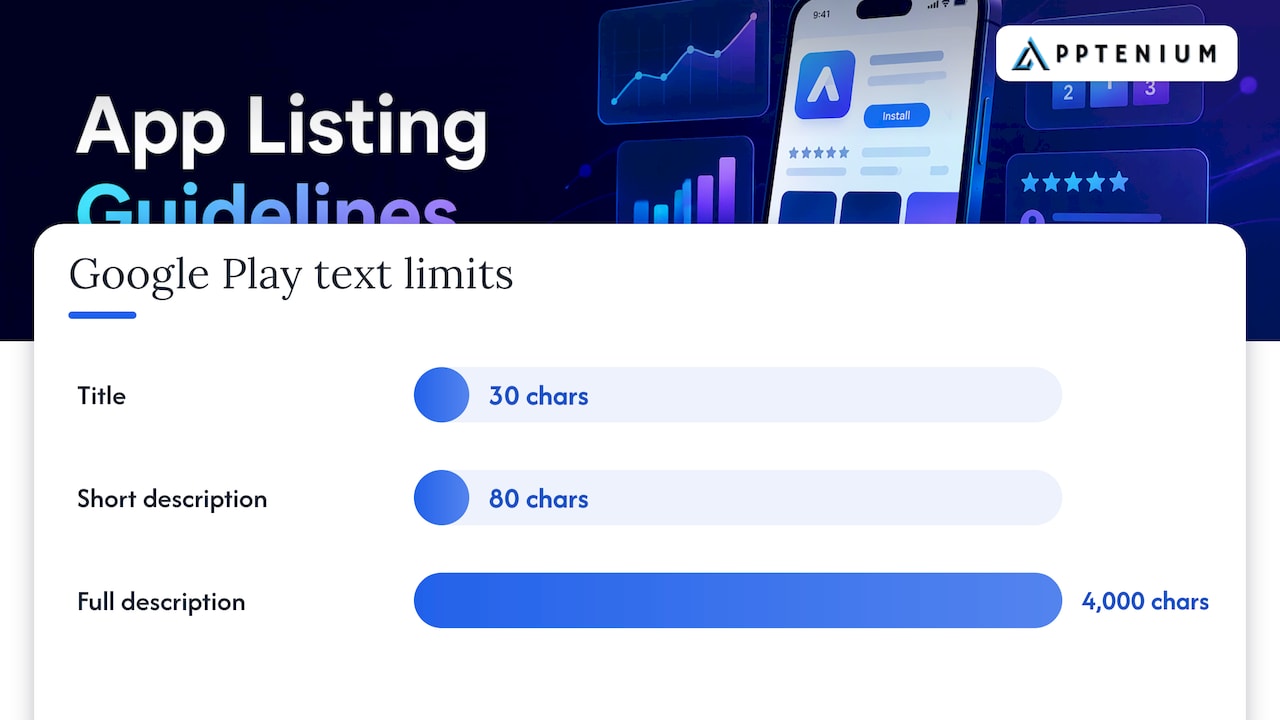
There is no hidden keyword field on Google Play. The store reads your visible text, so the 4,000-character description is where keyword coverage is built, written for humans first. How that indexing works is covered in Play Store keyword indexing. For a side-by-side of both stores’ rules, see our app store metadata policy guide.
Icon, screenshot and video rules
Visual assets carry as much policy weight as text.
Apple. You can upload up to 10 screenshots and up to 3 app previews of up to 30 seconds each. Previews must be captured on the device and autoplay muted. When no preview is available, the first one to three screenshots appear in search results, so they work as your search-result ad. Guideline 2.3.14 requires creative assets, including product page headers and search-result artwork, to pertain to the app’s content, functionality or brand, to suit all audiences, and to avoid misleading references to other apps, unverifiable claims, and specific or discounted pricing. The same rules appear in the App Review Guidelines.
Google Play. The best practices page bans graphic violence and sexually suggestive imagery. It also bans icons that resemble existing products or imply an official relationship, unattributed user testimonials, and text about store performance or rank such as ‘#1’ or ‘App of the year’, as well as price or promo claims like ‘10% off’. All of this is in the Play Console guidance.
If you plan a video, our guide to 15 to 30 second app preview videos covers what to show in the opening seconds.
What gets listings rejected or removed
Most rejections come from a short list of patterns. Check each before every submission:
- Inaccurate metadata. Screenshots, descriptions or subtitles that promise features the reviewer cannot find, or that show a different app, device or fabricated interface.
- Keyword violations. Competitor names, trademarks, plurals, the word ‘app’, and category names in Apple’s keyword field. See our rundown of forbidden App Store keywords.
- Prices and promos in the wrong place. Apple’s creative-asset rule rejects specific or discounted pricing, and Google rejects promo text and store-rank claims in listing assets.
- Irrelevant categories. Apple treats a mismatched category as grounds for rejection.
- Misleading or copycat artwork. Icons or names that resemble an existing product, or imply an official relationship, fail on both stores.
- Neglected locales. The Google Metadata policy covers every translation, so placeholder text or rough machine translation in a secondary language is still a violation risk.
- Deceptive or restricted content. Google Play removes apps for deceptive behavior, impersonation and restricted content such as sexually explicit material or illegal activities.
- Age-rating mismatches in assets. Apple’s Guideline 2.3.8 requires icons, screenshots and previews to meet a 4+ rating even if your app is rated higher, and reserves ‘For Kids’ and ‘For Children’ for the Kids Category.
A useful habit is to treat the listing like code: review it against this list whenever a version ships. Our audit-first ASO checklist turns that into a repeatable routine.
Optimizing inside the rules
Compliance is the floor. Ranking and conversion sit above it. Apple states that search results depend on text relevance (matches in the title, subtitle, keywords and primary category) and on user behavior such as downloads, ratings and reviews. That gives you two levers: say the right words in the right fields, and make the page convincing enough that people install.
A workable order of operations:
- Map keywords to fields. Decide which terms belong in the name, which in the subtitle, which in the hidden field. Keyword mapping keeps each term in one place.
- Write the title for a person first. A clear, descriptive name with one or two relevant terms outperforms a stuffed one, and it avoids rejection. See app title optimization.
- Lead with proof of value. The first screenshots and any preview video carry the install decision, particularly on Apple, where they show in search results.
- Localize properly. Every translation must meet the same policy and read naturally. The 4,000-character Google description and Apple’s 100-character keyword field both exist per locale.
- Track the effect. Rank movement, impressions and conversion all need watching after a metadata change. Keyword tracking shows whether a compliant edit actually moved your position.
If you manage many apps, portfolio keyword tracking keeps one view across all of them, and our competitor tracking checklist tells you when a rival changes its listing.
Testing listing changes without breaking policy
Both stores give you sanctioned ways to test. Use them instead of shipping blind edits.
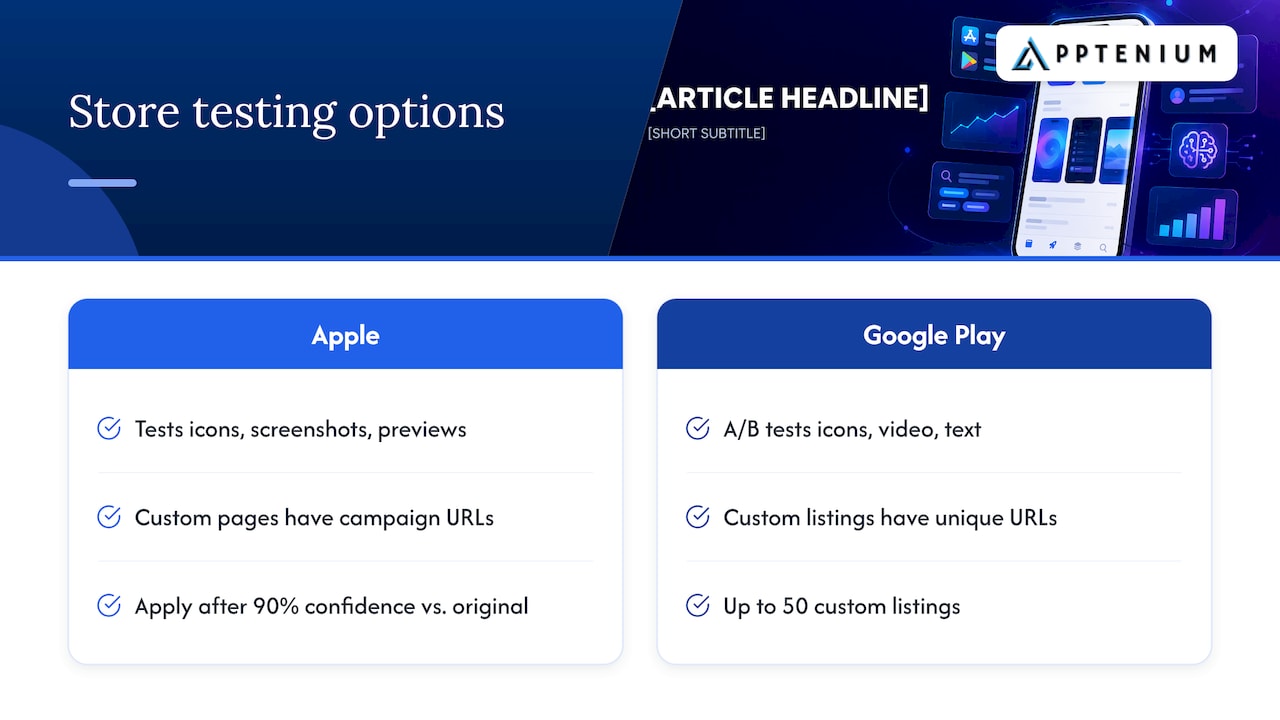
Apple offers product page optimization tests for icons, screenshots and app previews, plus custom product pages, which are separate versions of your page with their own URLs that you can point campaigns at. Apple’s guidance is to wait until a variant is declared better or worse than the original with 90% confidence before applying it.
Google Play recommends running A/B tests on icon, video and text through Store Listing Experiments, and creating custom store listings with unique URLs so each campaign gets the right message, as described in Making the most of Google Play. Google’s store listings page states you can create up to 50 custom listings, tailored by country, user state or search keyword.
The discipline matters more than the tool. Change one element per test so the cause is identifiable, give it enough time, and write down the hypothesis. A CRO testing calendar is a good model for sequencing tests so they do not overlap, and our guides on store listing experiments and app store A/B testing apply it to app stores. To read results correctly, follow the framework in how to measure ASO impact.
One caution when comparing against benchmarks: ‘conversion rate’ is used for several different ratios. Apple’s downloads over impressions, ASO tools’ downloads over product page views and ad platforms’ downloads over ad taps are not interchangeable. Use the same definition as your own dashboard.
Putting the checks into one scan
Doing all of this by hand means cross-reading two policy documents, a keyword sheet and a competitor list every release. That is where fragmented tooling costs time and where mistakes slip through.
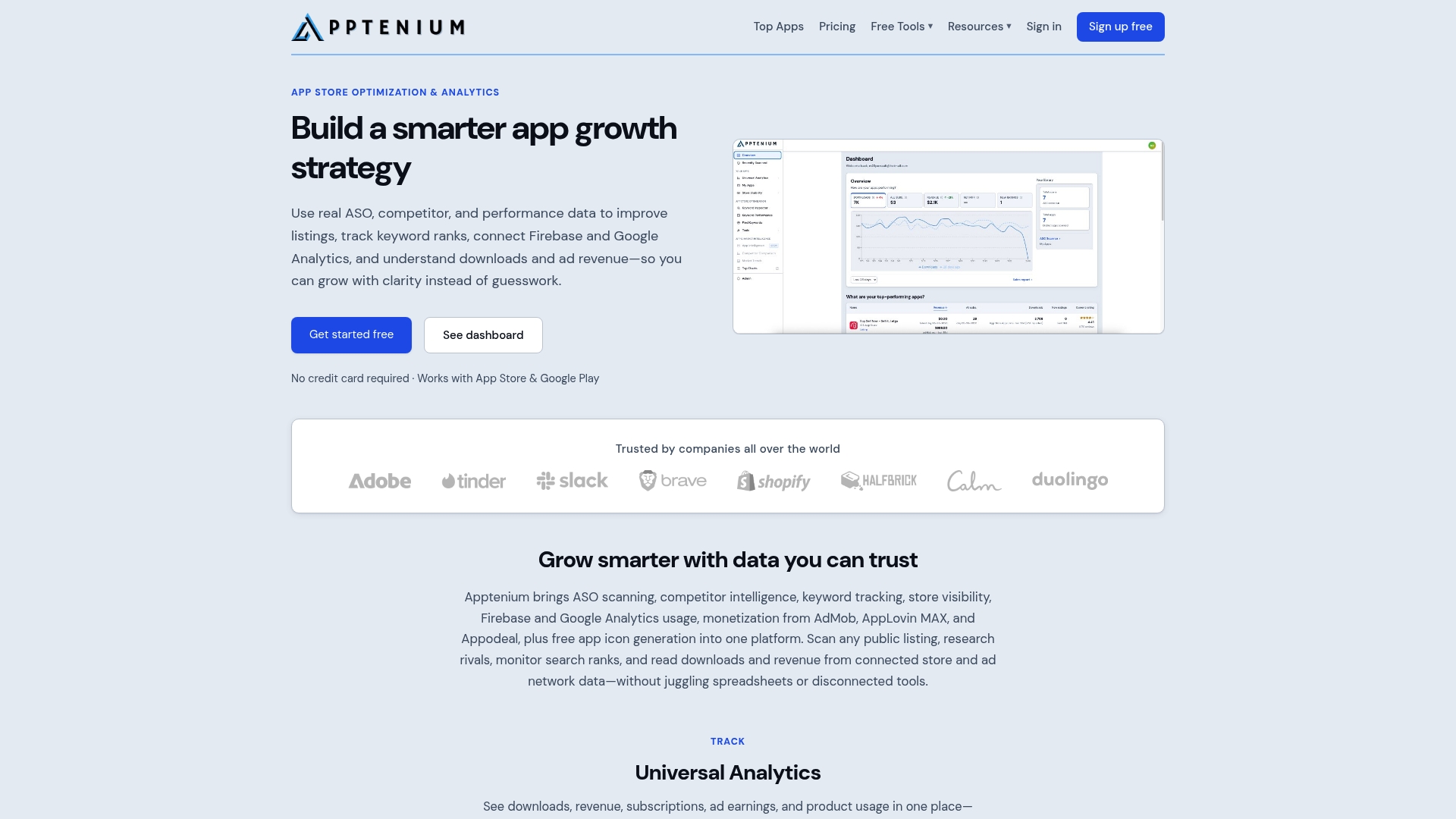
Apptenium combines ASO scanning, competitor intelligence and keyword tracking in one platform, and each scan returns copy-ready fixes from AI-powered recommendations. It also connects Firebase, Google Analytics and ad network data, so you can see downloads, revenue and subscriptions next to your listing work. The Free plan includes a limited number of scans per month. Pro is $9.99 per month and adds unlimited scans and premium features.
Run your listing through the free ASO tools first, or see both plans on the pricing page. For agencies and teams, the ASO tools overview shows how the pieces fit together.
Our perspective
Most listing problems we think about are not creative failures. They are consistency failures. The name says one thing, the subtitle repeats it, the Spanish locale was never finished, and the screenshots show last year’s interface.
That is why we believe listing guidelines should be checked as a routine, not as a pre-launch panic. A scan on every release, with fixes you can paste straight into the listing, turns policy from a gate you fear into a habit you barely notice.
We also think listing work and business results belong on one screen. When keyword tracking, competitor changes, downloads, subscriptions and ad revenue sit together, you can tell whether a compliant edit earned its place. That is the idea behind Apptenium: one platform instead of five tabs, at a price a small team can start with.
Mike
FAQ
Do Apple and Google Play use the same character limits?
No. Apple allows 30 characters for the name and subtitle and 100 for the hidden keyword field. Google Play allows a 30-character title, an 80-character short description and a 4,000-character full description. Plan each store’s metadata separately rather than copying one into the other.
Can I mention my price or a discount in my screenshots?
Not on either store. Apple’s Guideline 2.3.14 excludes specific or discounted pricing from creative assets, and Google bans price and promo claims such as ‘10% off’ in listing assets. Put pricing in the in-app purchase information instead.
Can I use a competitor’s name as a keyword?
No. Apple’s keyword rules prohibit competing app names and unauthorized trademarked terms, and misuse is a common rejection reason. Target the problem your app solves and the features it offers instead.
How often should I update my listing?
Whenever the app’s features or interface change, since Apple requires metadata to stay current with each version. Apple’s promotional text can be edited without a new submission, but it does not affect search ranking. Review your keywords on a regular schedule, using a tracking cadence that fits your release rhythm.
Sources
- App Review Guidelines, Apple Developer
- Submitting, App Store, Apple Developer
- Creating Your Product Page, App Store, Apple Developer
- App Store search, Apple Developer
- Best practices for your store listing, Play Console Help
- Making the most of Google Play
- Store listings, Google Play Console
- Build a CRO testing calendar that lifts revenue